Delegate permissions for domain computers to acquire a license | AD Bridge

To ensure computers have the correct rights to apply their own licenses, the Domain Computers group must be manually delegated to the license container.

šŸ“˜

To delegate control for users then follow this document: Delegate permissions to manage license containers. Remember this works only in "adsiedit.msc" not in AD Users and Computers.

To delegate control to the Computers object:

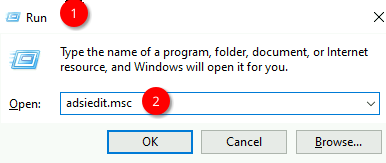
  1. Click Start, and then Run.

  2. Start ADSIEdit.

    Windows Run dialog with adsiedit.msc entered in the Open field.

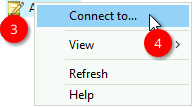
  1. Right-click the top node

  2. Select Connect to.

    ADSI Edit right-click context menu with Connect to highlighted.
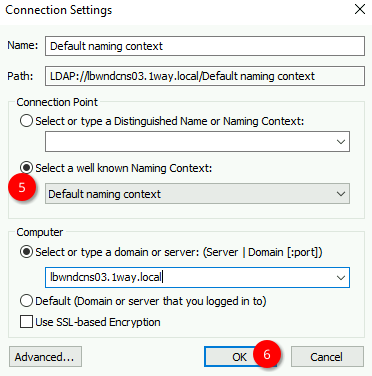
  3. Connect to the Default Naming Context for the appropriate domain.

  4. Click OK.

    ADSI Edit Connection Settings dialog box with Default naming context selected and a domain server set.
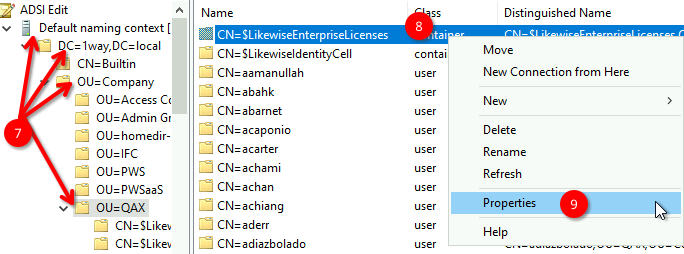
  5. Go to the CN=$LikewiseEnterpriseLicenses container.

  6. Right-click on the CN=$LikewiseEnterpriseLicenses container.

  7. Select Properties.

    DSI Edit tree with OU=QAX expanded. Context menu open on the license container with Properties highlighted.
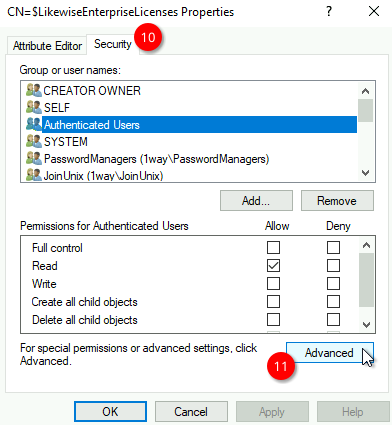
  8. Click the Security tab.

  9. Click Advanced.

    License container Properties dialog, Security tab. Authenticated Users selected with Read permission allowed and Advanced button highlighted.
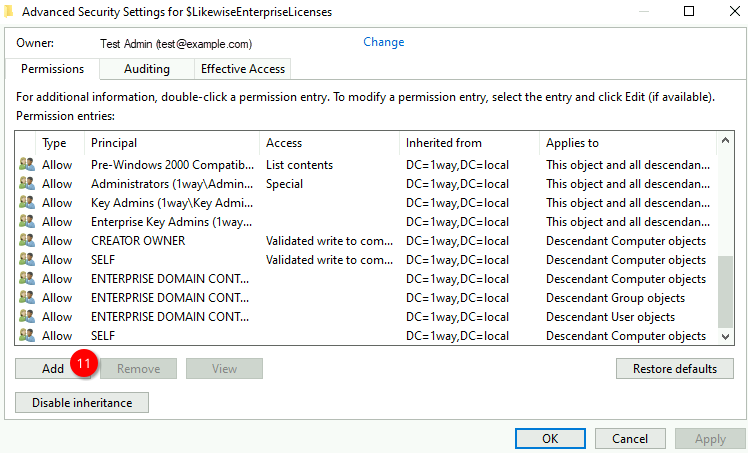
  10. Click Add.

    Advanced Security Settings showing permission entries for the license container with the Add button highlighted.
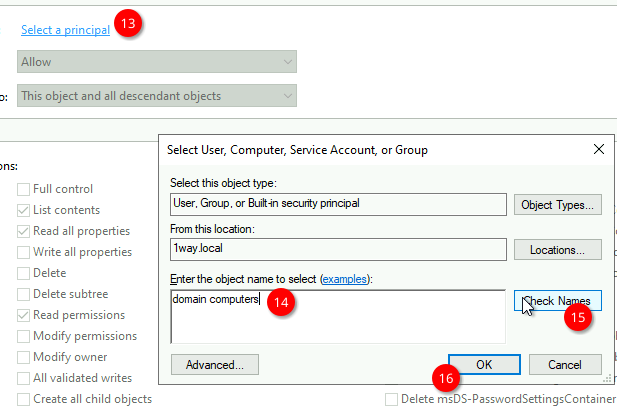
  11. Click Select Principal.

  12. Type Domain Computers.

  13. Click Check Names.

  14. Click OK.

    Select User dialog box with "domain computers" entered and Check Names button highlighted.
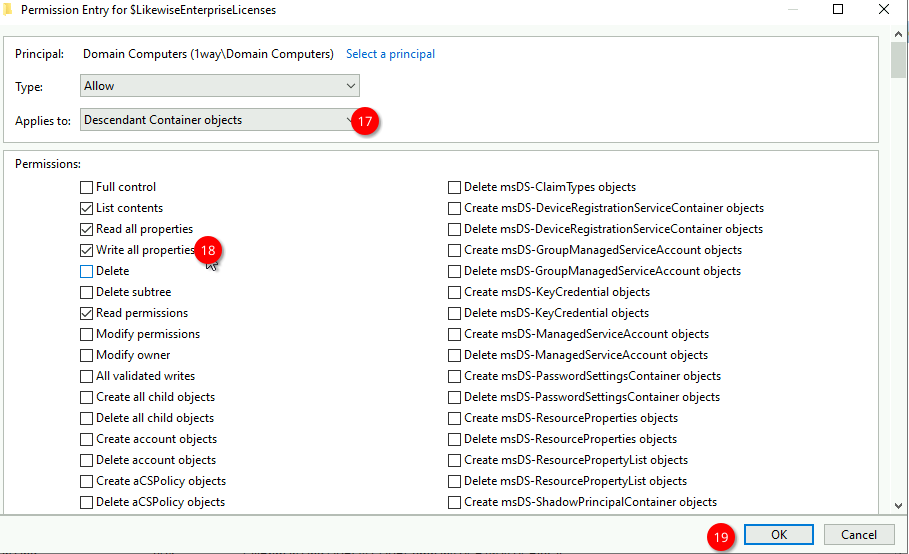
  15. In the Applies To dropdown, select Descendant Container Objects.

  16. Select the permission Write all properties.

  17. Click OK.

    Permission Entry dialog box. Principal set to Domain Computers, Applies to Descendant Container objects, with List contents, Read and Write all properties, and Read permissions checked.
  18. Continue to click OK to apply the permissions and close all boxes.


©2003-2026 BeyondTrust Corporation. All Rights Reserved. Other trademarks identified on this page are owned by their respective owners. BeyondTrust is not a chartered bank or trust company, or depository institution. It is not authorized to accept deposits or trust accounts and is not licensed or regulated by any state or federal banking authority.