
Workload Credentials CLI
The CLI offers an alternative way to manage secrets.
Get started
Supported platforms
OS: Windows, macOS, Linux
Download the CLI
-
Log on to your Pathfinder instance.
-
Select menu > Secrets.
-
Select Resources > CLI.
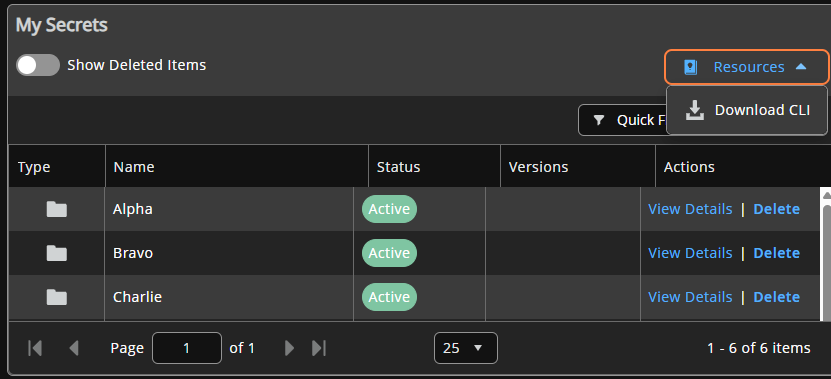
The Download CLI Tool dialog box displays.
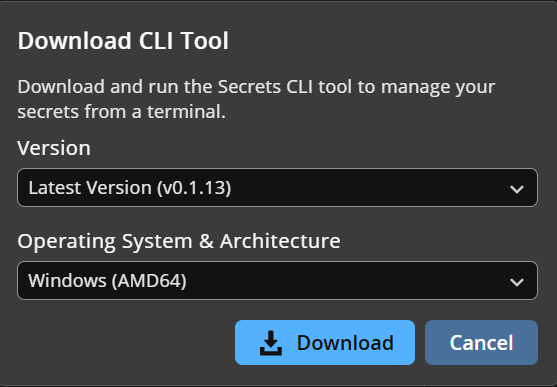
- Select a version and OS and architecture.
- Select Download.
Authenticate using the CLI
macOS/Linux
- Open Terminal.
- Navigate to the folder where the CLI binary is located.
- Run:
./secrets loginand provide the token when prompted.
Windows
- Open Command Prompt.
- Navigate to the folder where the CLI binary is located.
- Run:
secrets.exe loginand provide the token when prompted.
The token will be stored in a directory within $HOME and used for future CLI requests. To clear the value from this location, issue the secrets logout command.
Create a secret
secrets static create
Command reference
Usage:
  secrets [command]
Available Commands:
  completion  Generate the autocompletion script for the specified shell
  config      Display or update configuration
  dynamic     Manage dynamic secrets
  folder      Manage folder
  help        Help about any command
  integration Manage integrations
  static      Manage secrets
  lease       Manage dynamic secret leases
  login       Login to Secrets
  logout      Logout of Secrets
  version     Show the version number
Flags:
  -h, --help   help for completion
Global flags:
      --base-dir-name string   base Secrets directory name (default ".secret")
      --debug                  show debugging output
      --format string          output format (table, json, yaml) (default "table")
      --no-input               disable all prompts
      --timeout duration       request timeout in seconds (default 29s)
      --token string           access token
completion
secrets completion [command]
Description
Generate the autocompletion script for the specified shell
Available commands
  bash        Generate the autocompletion script for bash
  fish        Generate the autocompletion script for fish
  powershell  Generate the autocompletion script for powershell
  zsh         Generate the autocompletion script for zsh
config
Display or update configuration
Usage
secrets config [command]
Available commands
  get         Display current configuration
  set         Update configuration settings
Flags
  -h, --help   help for config
dynamic
Usage
secrets dynamic [command]
Available commands
  aws         Manage AWS dynamic secrets
  azure       Manage Azure dynamic secrets
  delete      Delete a dynamic secret
  destroy     Delete a dynamic secret permanently
  generate    Generate a dynamic secret
  get         Get a dynamic secret
  list        List dynamic secrets
  metadata    Manage dynamic secret metadata
  restore     Restore a deleted secret
Flags
  -h, --help   help for dynamic
dynamic aws
Manage AWS dynamic secrets.
Usage
secrets dynamic aws [command]
Available commands
  create      Create a new AWS dynamic secret
  update      Update an AWS dynamic secret
Flags
  -h, --help   help for aws
Flags on create
  -i, --integration string   integration to use for AWS dynamic secret (required)
  -r, --role-arn string      AWS role ARN to assume (required)
  -x, --external-id string   unique identifier required when assuming a role in another account
  -t, --ttl int              time-to-live in seconds (default 3600, minimum 900, maximum up to the role's maximum session duration — up to 43200)
      --policy string        inline AWS policy document
      --policy-arn strings   AWS policy ARN (repeatable)
      --group strings        AWS group name (repeatable)
      --aws-tag strings      key=value pair to use as an AWS tag (repeatable)
      --site-id string       site ID
update accepts the same flags as create. Only the fields you specify are changed; everything else is left as-is.
dynamic azure
Manage Azure dynamic secrets.
Usage
secrets dynamic azure [command]
Available commands
  create      Create a new Azure dynamic secret
  update      Update an Azure dynamic secret
Flags
  -h, --help   help for azure
Flags on create
  -i, --integration string             integration to use for Azure dynamic secret (required)
  -a, --application-object-id string   Azure AD application object ID for password credential management (required)
  -t, --ttl int                        time-to-live in seconds for the generated Azure credentials (default 3600)
      --site-id string                 site ID
update accepts the same -a and -t flags as create. Only the fields you specify are changed; everything else is left as-is.
folder
Manage folders.
Usage
secrets folder [command]
Available commands
  create      Create a new folder
  delete      Delete a folder
  destroy     Delete a folder permanently
  list        List all content within a folder
  restore     Restore a deleted folder
Flags
  -h, --help   help for folder
integration
Manage integrations
Usage
secrets integration [command]
Available commands
  aws         AWS integration management
  azure       Azure integration management
  list        List integrations
Flags
  -h, --help   help for integration
integration aws
Manage AWS integrations, including creation, update, and CloudFormation template generation for assumed roles.
Usage
secrets integration aws [command]
Available commands
  create      Create a new AWS integration
  update      Update an AWS integration
  get         Get an AWS integration
  list        List AWS integrations
  delete      Delete an AWS integration
  template    Generate CloudFormation template for AWS integration IAM role
Flags
  -h, --help   help for aws
Flags on create
  -r, --role-arn string      role ARN to assume (required)
  -x, --external-id string   optional ExternalId used during cross-account AssumeRole
      --site-id string       site ID
Flags on update
  -r, --role-arn string      role ARN to assume
  -x, --external-id string   optional ExternalId used during cross-account AssumeRole
  -d, --delete strings       integration key to clear (repeatable; e.g. external-id)
      --site-id string       site ID
integration azure
Manage Azure integrations, including creation, update, and deletion of Microsoft Entra ID service principal configurations.
Usage
secrets integration azure [command]
Available commands
  create      Create a new Azure integration
  update      Update an Azure integration
  get         Get an Azure integration
  list        List Azure integrations
  delete      Delete an Azure integration
Flags
  -h, --help   help for azure
Flags on create and update
  -t, --tenant-id string       Azure AD tenant (directory) ID
  -c, --client-id string       Azure AD application (client) ID
  -s, --client-secret string   Azure AD application client secret (prompted if omitted on create)
      --site-id string         site ID
static
Manage secrets
Usage
secrets static [command] [path]
Available commands
  create      Create a new secret
  delete      Delete a secret
  destroy     Delete a secret permanently
  get         Get a secret
  list        List static secrets within a folder
  metadata    Manage static secret metadata
  restore     Restore a deleted secret
  update      Update a secret
Flags
  -h, --help   help for static
Flags on update
  -e, --entry strings   secret key=value pair (repeatable)
  -d, --delete strings  secret key to delete (repeatable)
      --cas int         check-and-set version. When set,
only update if the secret's current version equals this
value (minimum 1)
      --site-id string  site ID
Use --cas for safe updates of a secret you've recently read. The command exits non-zero if the secret has been modified since you last read it; re-read the secret with secrets static get <path> to learn the new version, or omit --cas to force-overwrite.
Example: safe update with check-and-set
# Read the secret and note the version in its metadata
secrets static get /prod/db --format json

# Update only if the secret is still at version 5
secrets static update /prod/db -e password=newpass --cas 5
If another writer updated the secret in the meantime, the command fails with:
check-and-set parameter did not match the current versionlease
Manage dynamic secret leases.
A lease represents the lifecycle of a generated dynamic secret. This command provides visibility over how long temporary credentials remain valid.
Usage
secrets lease [command]
Available commands
  get         Get a dynamic secret lease
  list        List dynamic secret leases
  revoke      Revoke a dynamic secret lease
Flags
  -h, --help   help for lease
revoke destroys the upstream credentials at the provider and removes the lease record. Only revocable lease types are supported; non-revocable types (for AWS STS credentials) cannot be revoked early and return an error.
Usage
secrets lease revoke <lease-id>login
The login command authenticates a user to Workload Credentials and stores the authentication token.
By default, the token is saved in the 'default' profile, but can be stored in a specified profile. The token is used for subsequent requests.
Usage
secrets login [flags]
Flags
\-h, --help             help for login
      --site-id string   site ID (tenant ID) associated with the token
      --token string     access token
logout
The logout command logs a user out of Workload Credentials by deleting the authentication token file.
Usage
secrets logout [flags]
Flags
\-h, --help help for logoutversion
Show the version number of Workload Credentials CLI
Usage
secrets version [flags]
Updated 20 days ago
