
Reports | PRA Pathfinder
What are reports?
Reports allow administrators and privileged users to generate comprehensive documentation on system activities, with the ability to apply filters for customized insights tailored to specific needs.
How are reports useful?
Reports help track and analyze system usage, performance, and security metrics, providing valuable information for compliance, auditing, and decision-making within the organization.
How do I access the Reports page?
- Sign into app.beyondtrust.io.
The BeyondTrust Home page displays. - From the main menu, click Privileged Remote Access > Reports.
The Reports page opens and the Access tab displays by default.
The Access Reports page
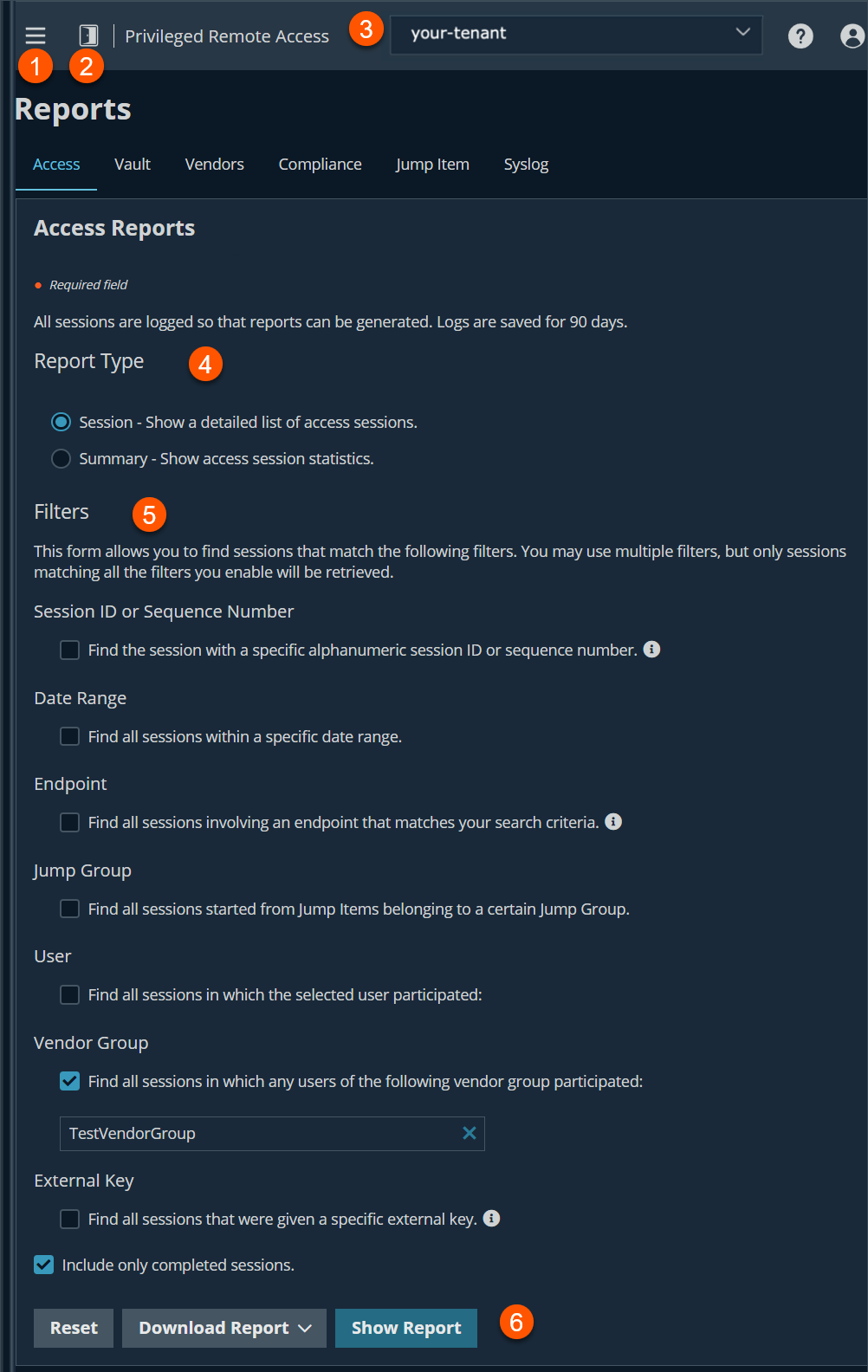
- Left menu: Easy access to all pages in Privilege Remote Access, including Status, Consoles & Downloads, My Account, Configuration, Jump, Vault, Console Settings, Users & Security, Reports, Management, and Appliance pages.
- Status: Opens the Status page.
- Header: Change your tenant site, manage your profile, and access documentation.
- Report Type: Select the type of report you want. The choices are Session , Summary or Session Forensics.
- Filters: Select the filters for the report.
- Download/Show Report: Option to download or show report results.
How to generate an access report
Administrators and privileged users can generate broad, comprehensive reports and also apply specific filtering to customize reported information based on clear-cut needs.
Report type
There are three activity report types:
- Session
- Summary
- Session Forensics (if enabled).
Session report
View all access sessions that match the criteria you specify in report filters. Session reports include basic session information along with links to session details, chat transcripts, and video recordings of screen sharing, Protocol Tunnel Jumps, and command shells.
Session reports detail a record of the full chat transcript, the number of files transferred (and details on failed file transfers), and specific actions that took place during the session. Windows events that present obvious visual changes within a session are captured as events in the session details. This primarily includes changes to the foreground window, with the executable name and its window title.
Specific command information relevant to Run as commands, including credentials, is also provided, but this reporting can be disabled in Security: manage security settings.
Other session information includes the session duration, local and remote IP addresses, and remote system information (if enabled). Reports can be viewed online or downloaded to your local system.
If session recording is enabled, view a video playback of individual sessions, including captions of who was in control of the mouse and keyboard at any given point during the session. If Protocol Tunnel Jump recording is enabled, view video recordings of the user's entire desktop. If command prompt recording is enabled, view recordings and/or text transcripts of all command shells run during the session. All recordings are stored on the B Series Appliance in raw format and are converted to compressed format when viewed or downloaded.
Summary report
Summary reports provide an overview of session activity over time, categorized by user. Statistics include the total number of sessions run, the average number of sessions per weekday, and the average duration of sessions.
Session forensics report
Access sessions forensics reports allow you to search for session events across all access sessions, as well as find sessions containing the given text or phrase provided in the filter. This searches chat messages, command shell commands, file transfers, file system modifications, registry modifications, and foreground window titles. This option only displays if you select the Enable Session Forensics checkbox. For more information about access session logging, see Access session logging.
Filters
You can apply filtering options as needed to derive more customized reports from the basic report types. Enable one or more filters as you wish, but only sessions that match all filters selected will be shown.
Session ID or sequence number
This unique identifier requires that you specify the ID (LSID) or sequence number for the single session you seek. This is often helpful if you have an external ticketing system or CRM integration. You cannot combine this filter with others. This option is only available in the Session report type.
Date range
Select a start date for which to pull reporting data. Next, select either the number of days for which to pull your report or an end date.
Endpoint
This criterion filters sessions by computer name, public IP, or private IP.
Jump Group
This criterion filters sessions by Jump Items belonging to a certain Jump Group. If selected, the following options are available:
- Find all sessions started from Jump Items belonging to a specific Jump Group.
- Find all sessions started from personal Jump Items for a specific user.
- Find all sessions in your personal Jump Group.
User
Select a user from the Search for a user box to filter sessions where a specific user participated. Select Match only if the selected user is the primary user for the session to find sessions only where the user was the primary user.
Vendor group
Use this criterion to find all sessions in which any users of a vendor group participated. A search box allows you to search for a specific vendor group.
External key
Use this criterion to filter to report sessions that used the same specific external key.
Include only completed sessions
Use this criterion to filter to include only sessions that have been completed. This excludes sessions that are still running.
Download or Show report
Once your filter criteria are selected, you can either download the report in a Microsoft Excel spreadsheet or show the report in a HTML browser.
To download the report, click Download Report and select the format you want, either Microsoft Excel or a comma separated value (CSV).
To show the report in a HTML browser, click Show Report.
Updated 9 months ago
