
Group policies | PRA Pathfinder
What are Group policies?
Group policies define permissions and settings for groups of users, enabling administrators to standardize and streamline access control.
How are Group policies useful?
Group policies help ensure consistency in user permissions, simplify administrative tasks, and support secure and efficient management of user groups.
How do I access the Group Policies page?
- Sign into app.beyondtrust.io.
The BeyondTrust Home page displays. - From the main menu, click Privileged Remote Access > Users & Security.
The User & Security page opens and the Users tab displays by default. - Click the Group Policies tab.
The Group Policies tab displays.
The Group Policies page
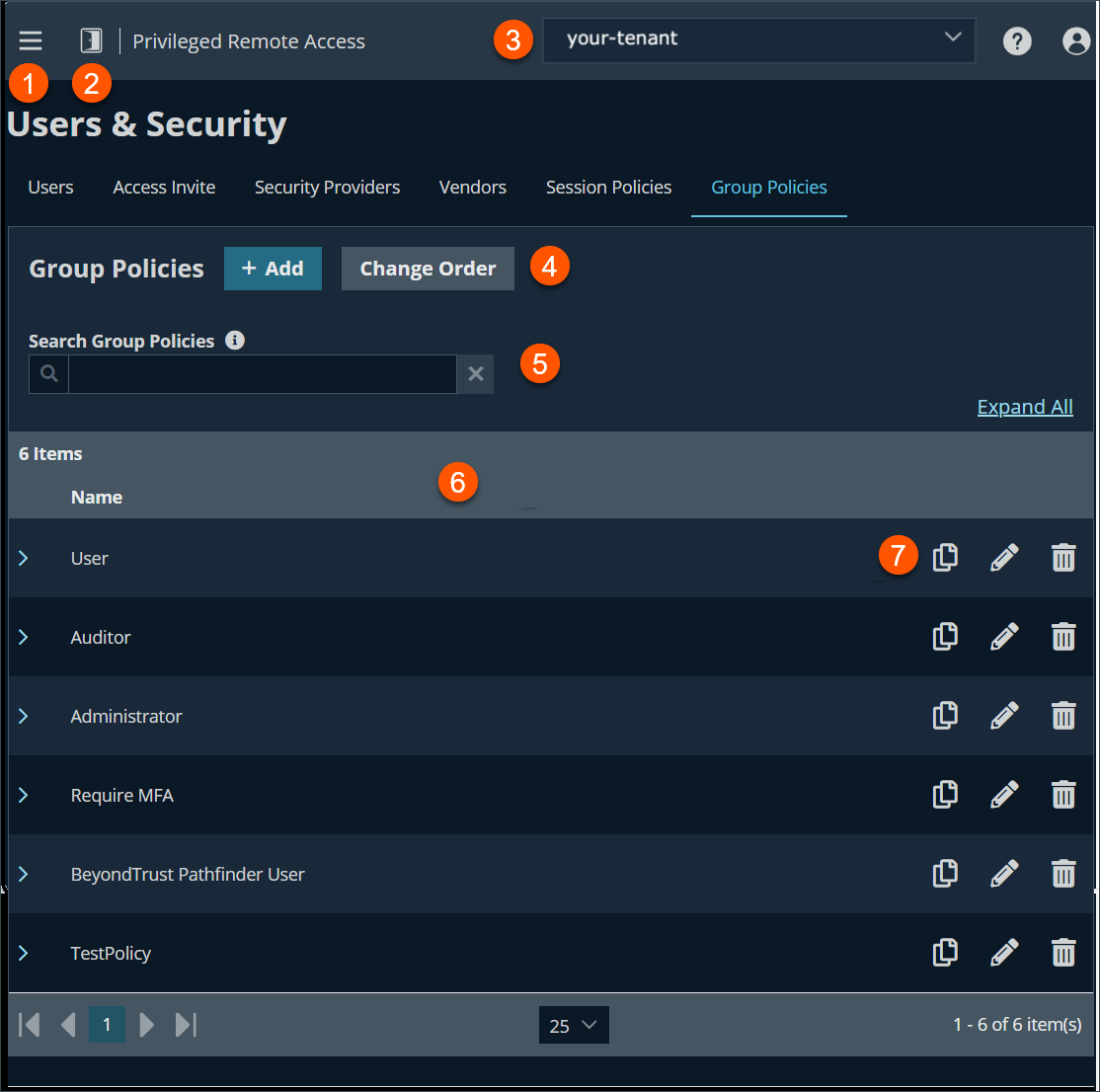
- Left menu: Easy access to all pages in Privilege Remote Access, including Status, Consoles & Downloads, My Account, Configuration, Jump, Vault, Console Settings, Users & Security, Reports, Management, and Appliance pages.
- Status: Opens the Status page.
- Header: Change your tenant site, manage your profile, and access documentation.
-
Add:- Adds a new group policy and change order of policy priority.
-
Filter: Search for group policies using the Name field.
-
Group Policies columns: The list of Group Policies columns.
Group Policies columns
- Name: Unique name of the group policy.
-
Group Policies list options: Copy, edit or delete a group policy.
Add a new policy
- Sign into app.beyondtrust.io.
The BeyondTrust Home page displays. - From the main menu, click Privileged Remote Access > Users & Security.
The User & Security page opens and the Users tab displays by default. - Click the Group Policies tab.
The Group Policies tab displays. - Click Add.
The Add New Policy page displays. - For Policy Name, enter a unique name for the policy.
- For the Available Members, select a member to assign and click Add to move it to the Policy Members list.
You can use the Search box to find existing members. You can select users from your local system or select users or entire groups from configured security providers. If an attempt to add a user from a configured security provider is invalid, the synchronization log error message appears here as well as in the log. - Select the various group policy settings, see Group Policy settings.
- Click Save.
Copy a policy
To expedite the creation of similar policies, you can copy a policy with identical settings. You can then edit this new policy to meet your specific requirements.
- Sign into app.beyondtrust.io.
The BeyondTrust Home page displays. - From the main menu, click Privileged Remote Access > Users & Security.
The User & Security page opens and the Users tab displays by default. - Click the Group Policies tab.
The Group Policies tab displays.
Edit a policy
- Sign into app.beyondtrust.io.
The BeyondTrust Home page displays. - From the main menu, click Privileged Remote Access > Users & Security.
The User & Security page opens and the Users tab displays by default. - Click the Group Policies tab.
The Group Policies tab displays.
If you edit the group policy that is the default for the local provider, or has local administrator users, and remove administrator permissions, a warning message appears. Ensure other users have administrator permissions before proceeding.
Delete a policy
- Sign into app.beyondtrust.io.
The BeyondTrust Home page displays. - From the main menu, click Privileged Remote Access > Users & Security.
The User & Security page opens and the Users tab displays by default. - Click the Group Policies tab.
The Group Policies tab displays.
Along with adding a new group policy, you can also change the order and search for existing group policies.
Change order
Click the Change Order button to drag and drop group policies to set their priority. Click Save Order for prioritization changes to take effect. When multiple policies apply to a given user, the permissions take effect by starting at the top of the Group Policies list, and then moving down the list. If a permission conflicts with a permission applied by a group policy higher in the list, then the lower permission will overwrite the higher, unless the higher was set as Final. By changing the order, you are changing the priority of the group policy. In short, group policies that appear lower in the list have a higher functional priority than those that are higher.
Search group policies
To quickly find an existing policy in the list of Group Policies, enter the name, or part of the name. The list filters to all policies with a name containing the entered search term. The list remains filtered until the search term is removed, even if the user goes to other pages or logs out. To remove the search term, click the X to the right of the search box.
Expand all / collapse all
To assist with searching and navigating the group policies, click the Expand All link above the grid to expand the details of all listed group policies. Click Collapse All to return to the unexpanded list of group polices.
Group Policy settings
Which settings should this group policy control?
When you create a new group policy, you must select the settings and membership(s) that are either defined in the policy or left available for configuration for individual users. The list of settings is the following:
- Account Settings: Controls settings such as Two Factor Authentication, Account Expiration and Account enablement.
- General Permissions: Controls a variety of Administration and Reporting settings.
- Access Permissions: Settings that allow access to Endpoints.
- Sessions Permissions: Settings that control Session Policies.
- Availability Settings: Settings that determine a login schedule.
- Memberships: Settings that control the Add & Remove permissions for the following:
- Team memberships
- Jump Groups access
- Jumpoint control
- Vault Account and Account Group
If a policy setting is defined, you are not able to modify that privilege for an individual user from their user account page.
If you have a policy that defines a permission and you do not want any policy to be able to replace that permission, then you must select that the permission cannot be overridden, and the policy must be a higher priority than other policies that additionally define that setting.
Account settings
Two Factor Authentication
Two factor authentication (2FA) uses an authenticator app to provide a time-based, one-time code to login to the administrative interface, as well as the access console. If Required is selected, the user is prompted to enroll and begin using 2FA at the next login. If Optional is selected, the user has the option to use 2FA, but it is not required.
Account Expiration
When the Account Expiration is selected, the Account Never Expires checkbox appears. When the setting is not selected, an account expiration date must be set which causes the account to expire after a set date.
Account Enablement
When the Account Enablement is selected, the Account Disabled appears. The Account Disabled allows you to disable the account so the user cannot log in.
When you disable the account, it does not delete the account.
Comments
Add a comment to help identify the purpose of this object.
General permissions
Administration
Administrative privileges
Grants the user full administrative rights.
Vault Administrative Privileges
When you select Vault Administrative Privileges, the Allowed to Administer Vault checkbox appears. This setting enables the user access to the Vault.
Endpoint Automation Administrative Privileges
When you select Endpoint Automation Administrative Privileges, the Allowed to Administer Endpoint Automation checkbox appears. This setting enables the user access to Endpoint Automation.
Password Setting
When you select Password Setting, the Allowed to Set Passwords checkbox appears. This setting enables the user to set passwords and unlock accounts for non-administrative local users.
Jumpoint Editing
When you select Jumpoint Editing, the Allowed to Edit Jumpoints checkbox apperas. This setting enables the user to create or edit Jumpoints. This setting does not affect the user's ability to access remote computers via Jumpoint, which is configured per Jumpoint or group policy.
Team Editing
When you select Team Editing, the Allowed to Edit Teams checkbox appears. This setting nables the user to create or edit teams.
Jump Group Editing
When you select Jump Group Editing, the Allowed to Edit Jump Groups checkbox appears. This setting enables the user to create or edit Jump Groups.
Canned Script Editing
When you select Canned Script Editing, the Allowed to Edit Canned Scripts checkbox appears. This setting enables the user to create or edit canned scripts for use in screen sharing or command shell sessions.
Custom Link Editing
When you select Custom Link Editing, the Allowed to Edit Custom Links checkbox appears. This setting enables the user to create or edit custom links.
Reporting
Session and Team Report Access
When you select Session and Team Report Access, the Allowed to View Access Session Reports section appears. The Allowed to view access session recordings checkbox appears and enables the user to view video recordings of screen sharing sessions and command shell sessions.
Vault Report Access
When you select Vault Report Access, the Allowed to View Vault Reports section appears. This setting enables the user to view his or her own vault events or all Vault events.
Syslog Report Access
When you select Syslog Report Access, the Allowed to View Syslog Reports checkbox appears. This setting enables the user to download a ZIP file containing all syslog files available on the appliance. Admins are automatically permissioned to access this report. Non-admin users must request access to view this report.
Access permissions
Access Permissions
When you select Access Permissions, the Allowed to access endpoints checkbox appears. When you select the Allowed to access endpoints, the Session Management settings display. This setting enables the user to use the access console in order to run sessions. If endpoint access is enabled, options pertaining to endpoint access are also available.
Session management
Allowed to share sessions with teams which they do not belong to
Enables the user to invite a less limited set of user to share sessions, not only their team members. Combined with the extended availability permission, this permission expands session sharing capabilities.
Allowed to invite external users
Enables the user to invite third-party users to participate in a session, one time only.
Allowed to enable extended availability mode
Enables the user to receive email invitations from other users requesting to share a session even when they are not logged into the access console.
Allowed to edit the external key
Enables the user to modify the external key from the session info pane of a session within the access console.
Remove User from session after inactivity
Sets the time to remove a user from an inactive session.
User to user screen sharing
Allowed to show screen to other users
Enables the user to share their screen with another user without the receiving user having to join a session. This option is available even if the user is not in a session.
Allowed to give control when showing screen to other users
Enables the user sharing their screen to give keyboard and mouse control to the user viewing their screen.
Jump Technology
Allowed Jump Item Methods
Enables the user to Jump to computers using the following:
- Jump Clients
- Local Jump on the local network
- Remote RDP (via a Jumpoint)
- Shell Jump (via a Jumpoint)
- Protocol Tunnel Jump (via a Jumpoint)
- Remote Jump (via a Jumpoint)
- Remote VNC (via a Jumpoint)
Jump Item Roles
A Jump Item Role is a predefined set of permissions regarding Jump Item management and usage.
The Default role is used only when Use User's Default is set for that user in a Jump Group.
The Personal role applies only to Jump Items pinned to the user's personal list of Jump Items.
The Teams role applies to Jump Items pinned to the personal list of Jump Items of a team member of a lower role. For example, a team manager can view team leads' and team members' personal Jump Items, and a team lead can view team members' personal Jump Items.
The System role applies to all other Jump Items in the system. For most users, this should be set to No Access. If set to any other option, the user is added to Jump Groups to which they would not normally be assigned, and in the access console, they can see non-team members' personal lists of Jump Items.
A new Jump Item Role called Auditor is automatically created on new site installations. On existing installations it has to be created. This role only has a single View Reports permission enabled, giving admins the option to grant a user just the permission to run Jump Item reports, without the need to grant any other permission.
Session permissions
Session policy
Set the prompting and permission rules that should apply to this user's sessions. Choose an existing session policy or define custom permissions for this user. If Not Defined is set, the global default policy is used. These permissions may be overridden by a higher policy.
Description
View the description of a pre-defined session permission policy.
Screen sharing
Screen sharing rules
Select the representative's and remote user's access to the remote system:
- If Not Defined is set, this setting is set by the next lower priority policy. This setting may be overridden by a higher priority policy.
- Deny: This setting disables screen sharing.
- View Only: This setting allows the representative to view the screen.
- View and Control: This setting allows the representative to view and take action on the system. If this is selected, Allow Endpoint Restrictions appears and can be set to avoid interference by the remote user:
- None: This setting does not set any restrictions on the remote system.
- Display, Mouse, and Keyboard: This setting disables these inputs. If this is selected, the Automatically request a privacy screen on session start check box appears. This setting ensures a privacy screen is applicable only for sessions started from a Jump Client, a Remote Jump Item, or a Local Jump Item. It is recommended to use privacy screen for unattended sessions. The remote system must support privacy screen.
Clipboard Synchronization Direction
This setting selects how clipboard content flows between users and endpoints. The settings are the following:
- Not allowed: The user is not allowed to use the clipboard, no clipboard icons display in the access console, and cut and paste commands do not work.
- Allowed from User to Endpoint: The user can push clipboard content to the endpoint but cannot paste from the endpoint's clipboard. Only the Send clipboard icon displays in the access console.
- Allowed in Both Directions: Clipboard content can flow both ways. Both Push and Get clipboard icons display in the access console.
Application Sharing Restrictions
This option limits access to specified applications on the remote system with either. There are three values:
- None
- Allow only the listed executables: Allows you to specify executables to allow as appropriate to your objectives.
- Deny only the listed executables: Allows you to specify executables to deny as appropriate to your objectives.
You may also choose to allow or deny desktop access.
- This feature applies only to Windows operating systems.
- The Add New Executable button only displays when the Application Share Restriction permission is enabled.
Add new executables
When you add executables, you have one of two choices:
- Enter file names or SHA-256 hashes, one per line: Manually enter the executable file names or hashes you wish to allow or deny. Click Add Executable(s) when you are finished to add the chosen files to your configuration.
You may enter up to 25 files per dialog. If you need to add more, click Add Executable(s) and then reopen the dialog. - Browse for one or more files: Choose executable files to automatically derive their names or hashes. If you select files from your local platform and system in this manner, use caution to ensure that the files are indeed executable files. No browser level verification is performed.
- Choose either Use file name or Use file hash (advanced) to have the browser derive the executable file names or hashes automatically.
Click Add Executable(s) when you are finished to add the chosen files to your configuration. You may enter up to 25 files per dialog. If you need to add more, click Add Executable(s) and then reopen the dialog.
- Choose either Use file name or Use file hash (advanced) to have the browser derive the executable file names or hashes automatically.
This option is available only in modern browsers, not in legacy browsers.
Allowed endpoint restrictions
Sets the option for the user to suspend the remote system's mouse and keyboard input. The user may also prevent the remote desktop from being displayed.
Annotations
Annotation rules
Enables the user to use annotation tools to draw on the remote system's screen. If Not Defined is enabled, this option is set by the next lower priority policy. This setting may be overridden by a higher priority policy.
File transfer
File Transfer Rules
Enables the user to upload files to the remote system, download files from the remote system, or both. If Not Defined is enabled, this option is set by the next lower priority policy. This setting may be overridden by a higher priority policy.
Accessible paths on the endpoint's filesystem
Allow the user to transfer files to or from any directories on the remote system or only specified directories.
Accessible paths on user's filesystem
Allow the user to transfer files to or from any directories on their local system or only specified directories.
Command shell
Shell Rules
Enables the user to issue commands on the remote computer through a virtual command line interface. If Not Defined is enabled, this option is set by the next lower priority policy. This setting may be overridden by a higher priority policy. Configure command filtering to prevent accidental use of commands that can be harmful to endpoint systems.
Command shell access cannot be restricted for Shell Jump sessions.
Allowed Executable Command Patterns
Enables the user to search for a regex pattern that matches a shell prompt. For filtering to work, the Recognized Shell Prompts section on the Jump > Jump Item page must be set and only filter commands in a Shell Jump session.
System information
System Information Rules
Enables the user to see system information about the remote computer. If Not Defined is enabled, this option is set by the next lower priority policy. This setting may be overridden by a higher priority policy. You also have the option to set system information actions.
- Allowed to use system information actions: Enables the user to interact with processes and programs on the remote system without requiring screen sharing. Kill processes; start, stop, pause, resume, and restart services; and uninstall programs.
Registry access
Registry Access Rules
Enables the user to interact with the registry on a remote Windows system without requiring screen sharing. You have the ability to do the following actions:
- View, add, delete and edit keys
- Search and import/export keys
Canned scripts
Canned Script Rules
Enables the user to run canned scripts that have been created for their teams. If Not Defined is enabled, this option is set by the next lower priority policy. This setting may be overridden by a higher priority policy.
Session Termination Behavior
When the access session ends, automatically
Controls what action to happen when session ends. The following options are:
- Not Defined
- Do Nothing
- Lock the computer
- Logout the user (Only works on Windows hosts).
Allow users to override this setting per session
You can allow a user to override the session termination setting from the Summary tab in the console during a session.
Availability settings
Login schedule
Restrict user login to the following schedule
Set a schedule to define when users can log into the access console. Set the time zone you want to use for this schedule, and then add one or more schedule entries. For each entry, click Add Schedule Entry to set the start day and time and the end day and time.
If, for instance, the time is set to start at 8 am and end at 5 pm, a user can log in at any time during this window but may continue to work past the set end time. They are not, however, allowed to log back in after 5 pm.
Force logout when the schedule does not permit login
If stricter access control is required, check this option. This forces the user to log out at the scheduled end time. In this case, the user receives recurring notifications beginning 15 minutes prior to being disconnected. When the user is logged out, any owned sessions follow the session fallback rules.
Memberships
Add Team Membership
In the Teams field, you can search for teams to which members of this group policy should belong. You can set the role as Team Member, Team Lead, or Team Manager. These roles play a significant part in the Dashboard feature of the access console. Once you have selected a team and team role, click Add.
The added teams are shown in a table. You can edit the role of members, click the pencil. To delete the team from the list, click the trash can.
Remove Team Membership
When you select Remove Team Membership, the Remove From Teams section displays. This setting allows you to search for teams from which members of this group policy should be removed. From the result, you select the team, and then click Add. Removed teams are shown in a table. You can delete a team from the list.
Add Jumpoint Membership
When you select Add Jumpoint Membership, the Add to Jumpoint section displays. From Jumpoint, you search for Jumpoints in which members of this group policy should be allowed to access. From the result, click Add. The added Jumpoints are shown in a table. Click the trash can to delete a Jumpoint from the list.
Remove Jumpoint Membership
When you select Remove Jumpoint Membership, the Remove from Jumpoint section displays. From Jumpoint, you search for Jumpoints from in which members of this group policy should not be removed. From the result, click Add. The removed Jumpoints are shown in a table. Click the trash can to delete a Jumpoint from the list.
Add Jump Group Memberships
When you select the Add Jump Group Membership, the Add to Jump Groups section displays. This section is where you search for Jump Groups to which members of this group policy should belong. You can set each user's Jump Item Role to set their permissions specific to Jump Items in this Jump Group, or you can use the user's default Jump Item Roles set in this group policy or on the Users & Security > Users page. A Jump Item Role is a predefined set of permissions regarding Jump Item management and usage. The added Jump Groups are shown in a table. To edit a Jump Group's settings, click the pencil. To delete the Jump Group from the list, click the trash can.
You can also apply a Jump policy to manage user access to the Jump Items in this Jump Group by selecting Set on Jump Items instead uses the Jump Policy applied to the Jump Item itself.
Jump Policies are configured on the Jump > Jump Policies page and determine the times during which a user can access this Jump Item. A Jump Policy can also send a notification when it is accessed or can require approval to be accessed. If neither the user nor the Jump Item has a Jump Policy applied, this Jump Item can be accessed without restriction.
Remove Jump Group Memberships
When you select Remove Jump Group Memberships, the Remove From Jump Groups section displays. In Jump Group, you search for Jump Groups from which members of this group policy should be removed. From the result, click Add. The removed Jump Groups are shown in a table. To delete a Jump Group from the list, click the trash can.
Add Vault Account Memberships
When you select Add Vault Account Memberships, the Add to Vault Accounts section displays. From Accounts, you search for an account, select the Vault Account Role, and then click Add to grant members of the policy access to the selected vault account. Users may have memberships added by other group policies. To see a full list, go to Vault > Accounts to see all members within each account. Users may be assigned one of two roles for using the vault account:
- Inject: (default value) Users with this role can use this account in Privileged Remote Access sessions.
- Inject and Checkout: Users with this role can use this account in Privileged Remote Access sessions and can check out the account on Admin. The Checkout permission has no effect on generic SSH accounts.
Enable the Add Vault Account Memberships permission to assign a Vault Account Role to a vault account in a group policy. The Vault Account Role is visible in the list of accounts added to the group policy.
Add Vault Account Group Memberships
When you select Add Vault Account Group Membership, the Add To Vault Account Groups section displays. In Account Group, you search for an account group, select the Vault Account Role, and then click Add to grant members of the policy access to the group of vault accounts. Users may have memberships added by other group policies. View Vault > Account Groups to see all members within each group. Users may be assigned one of two roles for using the group of vault accounts:
- Inject: (default value) Users with this role can use this account in Privileged Remote Access sessions.
- Inject and Checkout: Users with this role can use this account in Privileged Remote Access sessions and can check out the account on Admin. The Checkout permission has no effect on generic SSH accounts.
Enable the Add Vault Account Group permission to assign a Vault Account Role to a group of vault accounts in a group policy. The Vault Account Role is visible in the list of account groups added to the group policy.
Export policy
You can export a session policy from one site and import those permissions into a policy on another site.
To export a saved policy file, do the following:
- Use a Chromium-based browser to sign in to your Privileged Remote Access URL.
This URL is provided in the BeyondTrust welcome email and includes your site URL followed by /login. - From the left menu, click Users & Security.
The Users page opens and displays by default. - At the top of the page, click Session Policies.
The Session Policies page displays. - Edit an existing policy file, click the pencil.
- Scroll to the bottom of the page, click Export Policy, and save the file.
When you export a group policy, only the policy name, account settings, and permissions are exported. Policy members, team memberships, and Jumpoint memberships are not included in the export.
Import policy
You may import those policy settings to any other BeyondTrust site that supports session policy import.
To import a saved policy file, do the following:
- Use a Chromium-based browser to sign in to your Privileged Remote Access URL.
This URL is provided in the BeyondTrust welcome email and includes your site URL followed by /login. - From the left menu, click Users & Security.
The Users page opens and displays by default. - At the top of the page, click Session Policies.
The Session Policies page displays. - Edit an existing policy file, click the pencil.
- Scroll to the bottom of the page, click + Select Policy File.
- From the Open dialog box, located the exported policy file. The default extension is .bgo.
- Select the exported policy file, click Open.
- Once the policy file is uploaded, the Edit Session Policy page displays, which allows you to make modifications. After the modifications are made, click Save.
When you import a policy file to an existing group policy it overwrites any previously defined permissions, with the exception of policy members, team memberships, and Jumpoint memberships.
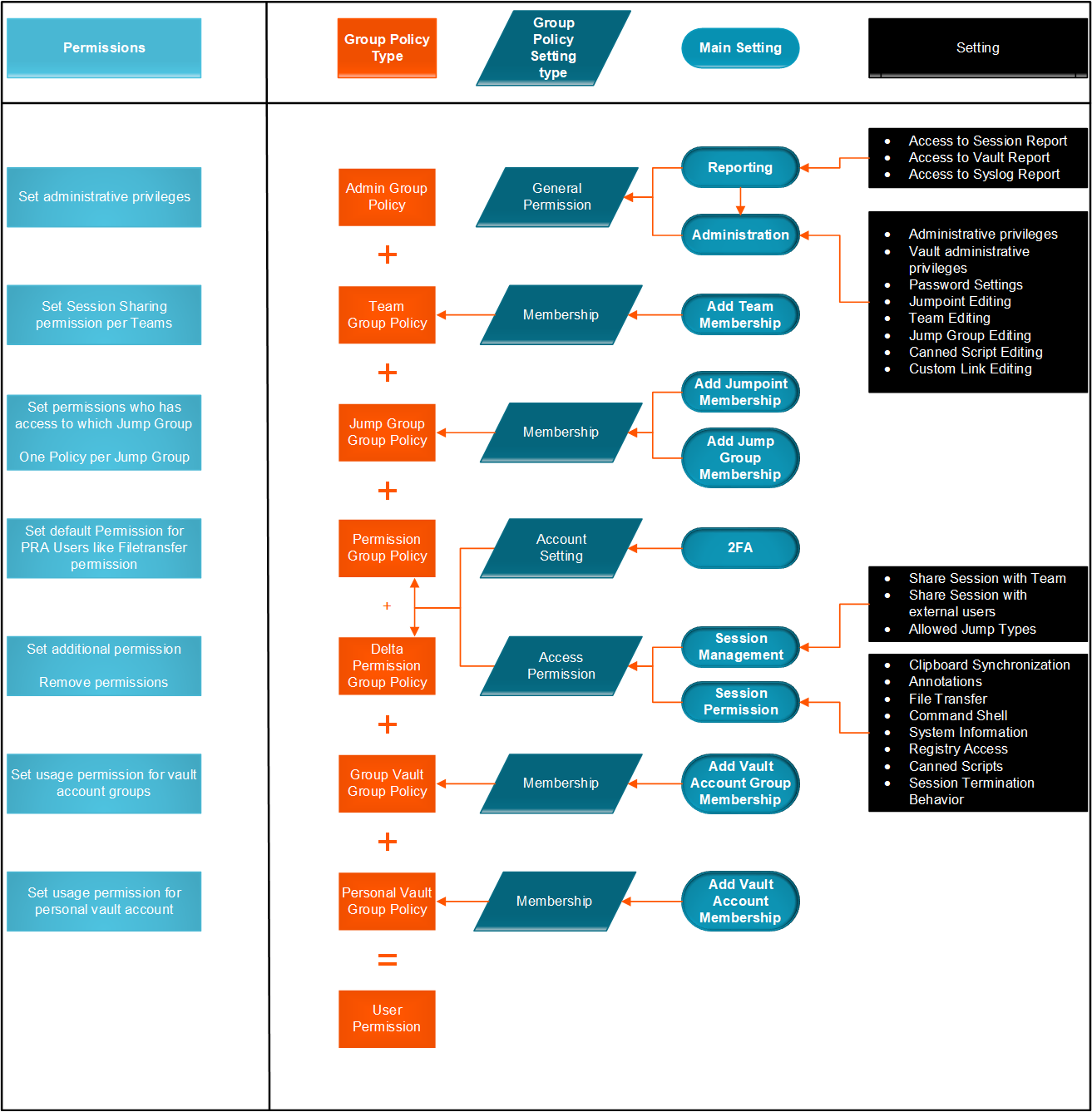
Sample policy matrix
The diagram below is an example of how multiple policies can work together.
Updated 9 months ago
