
Remote Support 26.1.1 release notes
🔐 Security update
Important - for On-Premises customers:26.1 - Critical Update Controls: Improved Clarity & Safeguards
In 26.1, we’ve strengthened how critical security updates are communicated and managed, without changing existing selected options.
- If you have previously disabled critical security updates WE STRONGLY recommend you re-enabled them to better protect your appliance's security posture.
- To re-enable critical security updates:
- Sign in to your B Series Appliance
- From the top menu, click Updates
- Check Automatically install critical updates every day during the Maintenance Window
- Click Save
- If you chose to disable critical security updates, you will now see in‑product messaging highlights the security risks of opting out and informs customers of upcoming changes to critical update handling that will no longer allow you to disable them for critical updates that don't cause downtime starting in the next release of the product.
26.2 - Critical Security Updates Automatically Re‑Enabled
Starting in 26.2, critical security updates will be re‑enabled by default to help ensure appliances remain protected against actively exploitable vulnerabilities.
- Customers who previously opted out of critical updates will be opted back in.
- Opt‑out options may remain available, but with additional safeguards and warnings.
- Customers who fully opt out of critical updates assume responsibility for associated security risks.
🆕 New features
Hear endpoint audio during remote sessions
Representatives can now hear audio from supported endpoints during remote sessions. This helps troubleshoot devices that communicate status through sounds (such as alerts, beeps, or spoken prompts) without needing someone physically present.
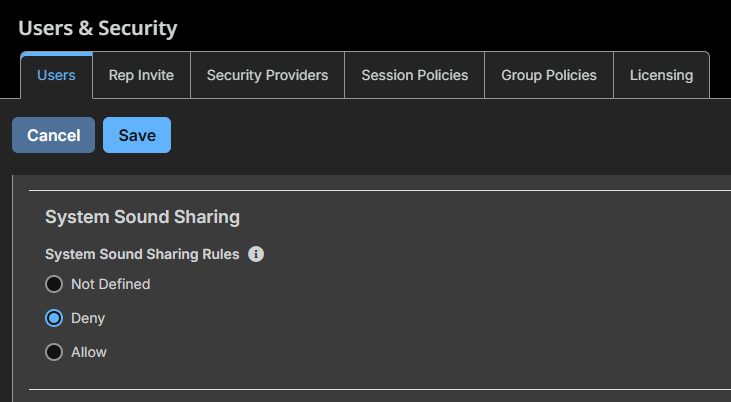
Allow or Deny System Sound Sharing
- This feature only works if all of the following are true:
- The representative has sound permissions.
- Peer to Peer is enabled for the site, under Configuration > Options.
- Your network allows peer-to-peer connections.
- Sounds are not currently recorded in Session Recordings, but will be in a future release.
- For more information, see User Settings, Desktop screen share, and Web screen share.
New and improved macOS Jump Client deployment
The macOS Jump Client is now deployed using a .pkg installer.
- Version 25.3.1+RS or later is required before upgrading to 26.1.1 Remote Support.
- Only system mode Jump Clients are supported. User mode Jump Clients are no longer supported on macOS.
- If any Mac User Mode Jump Clients are detected during an upgrade to 26.1.1, a Pre-upgrade 10 warning is displayed, halting the upgrade process. This is to prevent potential Jump Client loss. Customers should audit their environment for Mac User Mode Jump Clients and address them prior to upgrading to avoid interruption.
Installations can be customized using a configuration profile (.mobileconfig) deployed prior to installing the .pkg file. Two installer types are available:
-
Generic installer: Requires a .mobileconfig file that includes, at minimum, key_info. Additional settings such as comments and Jump Group can also be specified in the same file.
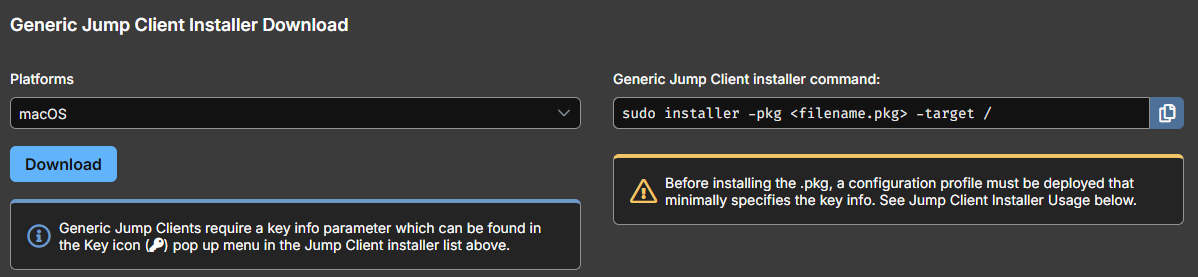
Located on the Asset Management > Jump Clients tab
-
Non-generic installer: Does not require a .mobileconfig file, as connection information is built into the installer. A .mobileconfig file is only needed if you want to customize settings such as comments or Jump Group.
The steps to install a configuration profile (.mobileconfig) vary depending on your macOS version.
Newer macOS versions
Use one of the following methods:
- Finder: Double-click the .mobileconfig file to open it, then navigate to System Settings > Privacy & Security > Device Management and install the profile.
- Device Management: Open System Settings > Privacy & Security > Device Management and add the profile directly from the list.
Older macOS versions
Double-click the .mobileconfig file. The profile installs automatically.
MDM deployment
If you are deploying the configuration profile programmatically via Mobile Device Management (MDM), refer to your MDM tool's documentation for the appropriate installation steps.
For more information, see Jump Clients: Install on macOS.
Navigate the UI with clearer Asset terminology
The user interface now uses more descriptive, context-aware terms in place of many Jump labels. This makes navigation and configuration easier to understand for new users while retaining key terms like Jump Client for continuity.
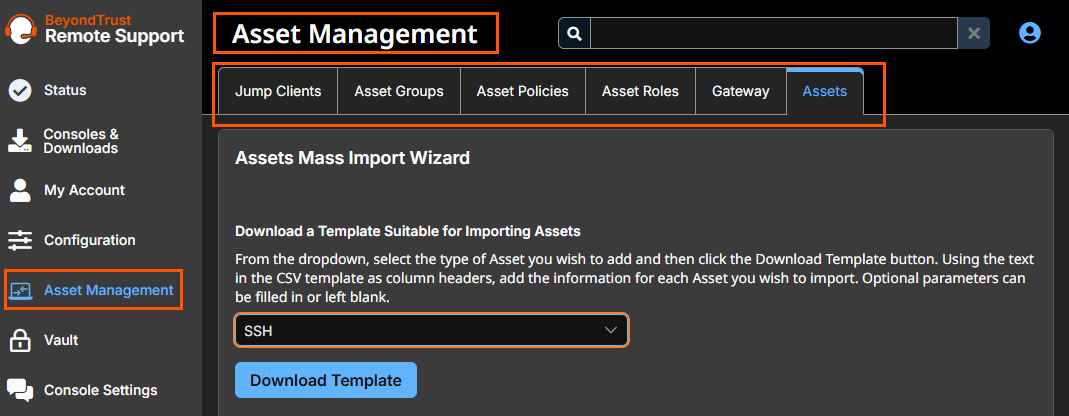
Asset Management page, formerly known as Jump.
For more information, see the updated terms at the top of the Remote Support glossary.
Automatic SSH Erase Key Configuration for Shell Jump Sessions
Shell Jump sessions now automatically configure the SSH erase key character from the remote system, improving compatibility with other systems that prefer non-default erase characters.
Atlas support for FedRAMP (Cloud only)
Atlas deployments are now supported in FedRAMP environments, with availability in the US-East (US-E) region.
Balance sessions across clustered Gateways
Sessions initiated through a clustered Gateway are now routed to a node selected based on factors such as latency or current load. This improves connection responsiveness while preserving the redundancy benefits of a clustered deployment.
For more information, see Install a Windows Gateway.
Use FIDO2 security keys as a second factor in Cloud and On-premises only deployments
Cloud and on-premises only deployments can now use FIDO2 authenticators as a second factor for authentication. This provides a phishing-resistant MFA option and enables FIDO2 to be used for per-session MFA requirements where supported by policy.
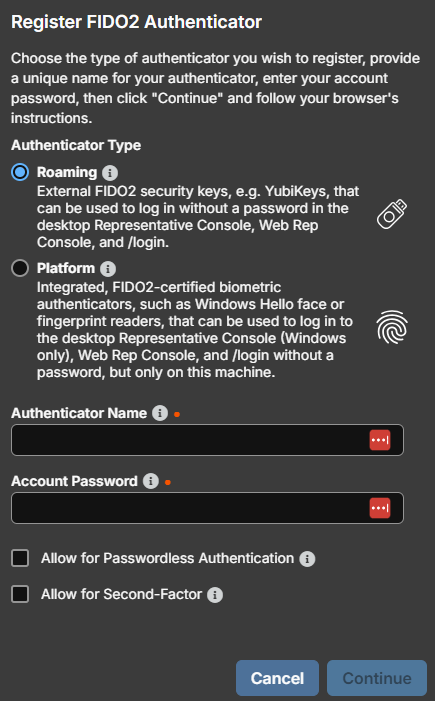
Navigate to My Account > Security to register your FIDO2 authenticator
For more information, see Cloud Account Security.
Delegate administration with granular permissions
Administrative tasks can now be delegated with more granular permissions instead of requiring global administrator access. When you use the Allowed to Set Passwords and Reset MFA setting this enables scoped user-management actions (including MFA reset).
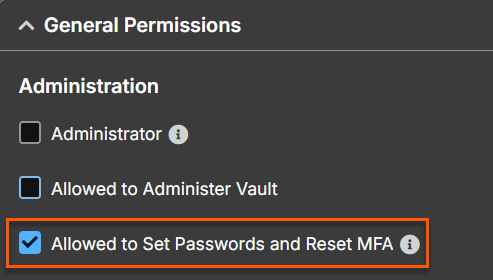
Located under Users & Security > Users
For more information, see Group Policy and User Settings > General Permissions.
Import endpoint lists to target Endpoint Automation jobs
Endpoint Automation jobs can now target systems by importing or pasting a list of endpoint names (Jump Clients). Jobs run only against endpoints the user is authorized to access, and lists can be maintained for repeatable operations.
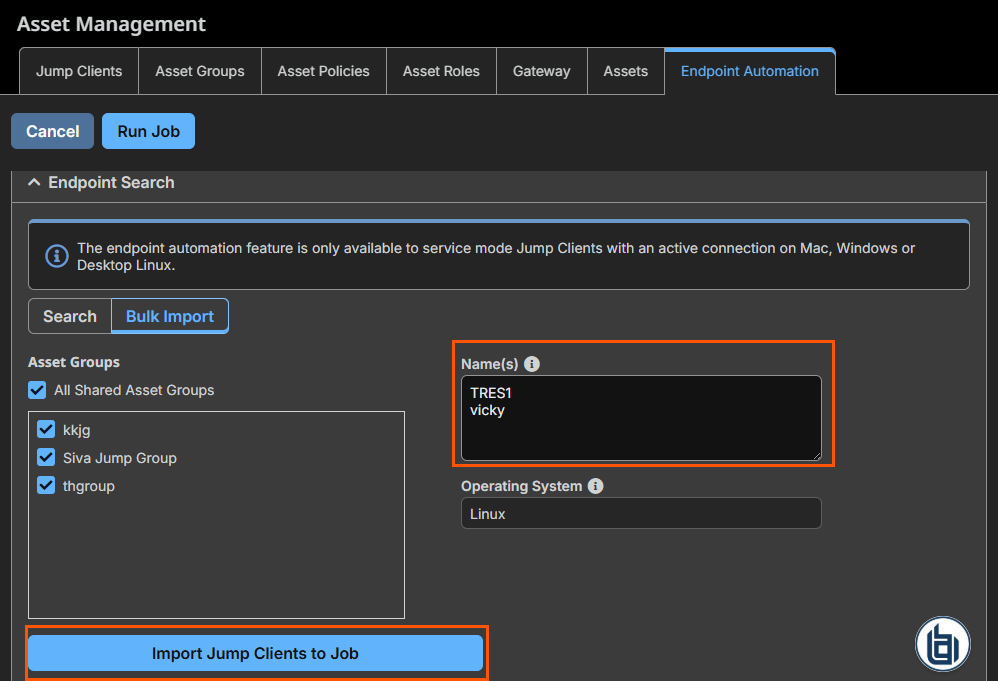
For more information, see Endpoint automation.
Consume Command API responses in JSON
The Command API now supports JSON output in addition to XML. This makes it easier to integrate command results with modern automation and integration tooling that expects JSON payloads.
For more information, see Command API - JSON.
Log out of your SAML identity provider when you sign out of Remote Support
SAML-authenticated users can now be logged out of their Identity Provider when they sign out of the product (where the IdP supports SLO). This helps ensure sessions end consistently across both systems and reduces the risk of lingering authenticated sessions on shared devices.
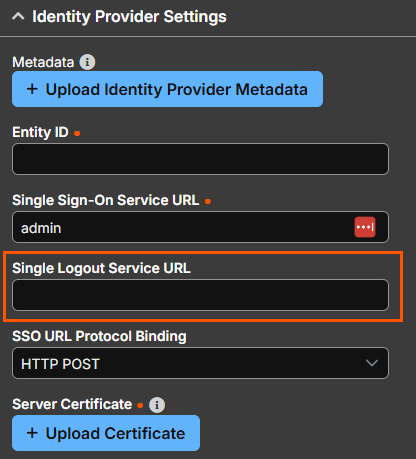
Navigate to Users & Security > Security Providers > Identity Provider Settings
For more information, see How to manage security providers.
AI-Augmented Query Assistant
Pathfinder Remote Support sites now have access to an MCP server that can be added to AI assistants to interact with RS’s Configuration API.
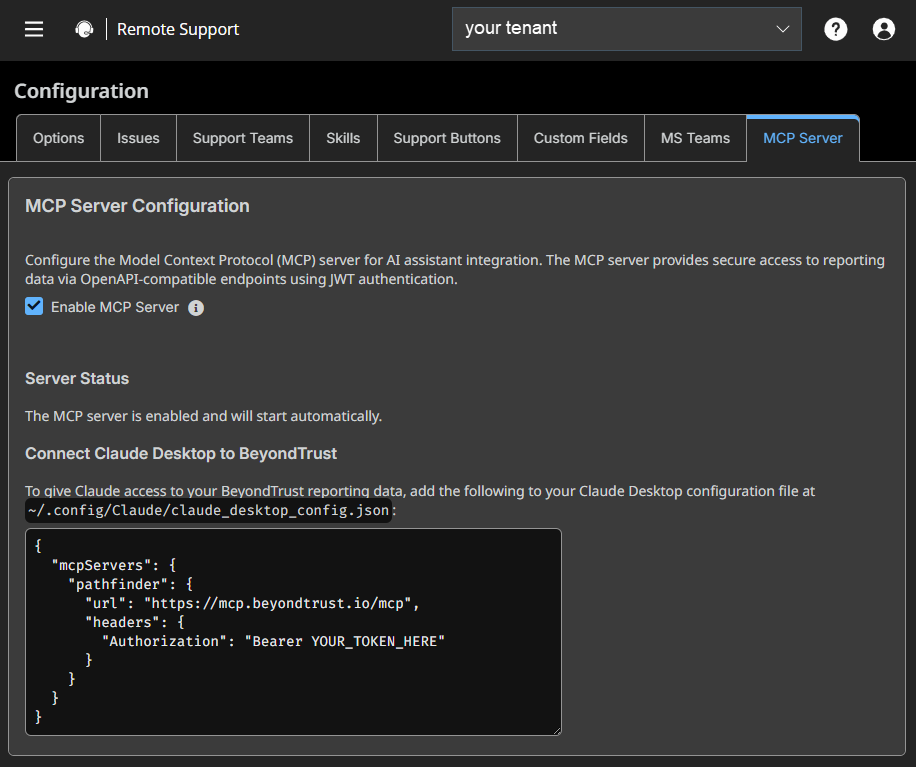
For more information, see MCP Gateway and AI Query Assistant.
Confirm risk and verify connectivity when managing critical auto-updates
When disabling automatic critical updates, administrators must now acknowledge a high-signal warning and type a confirmation value before the setting is applied. The updates page also surfaces update-service connectivity status and supports on-demand connectivity testing, helping prevent situations where automatic updates appear enabled but cannot function.
For more information, see Updates.
Red Hat OpenShift support
We now support Red Hat OpenShift KVM virtual machines.
For more information, see Red Hat documentation.
Important informationThe minimum recommended instance size is 4 CPUs and 32 GB memory.
Access archived data without enabling legacy XML and Archive API settings
The legacy Enable XML API and Enable Archive API settings are no longer required to access historical archived event data. These capabilities are now available by default, helping dashboards and integrations continue to retrieve archived history after restarts or service interruptions.
For more information, see Cloud API configuration.
✨ Enhancements
UI/UX Improvements
- Updated the text for the default credential checkbox to Remember as my default for this item.
- Users who attempt to start sessions with more than 10 Assets selected simultaneously now see a clearer message explaining the limitation.
- The Customer Client's pop-up windows now adhere to the operating system's High Contrast settings.
Customize console columns and share saved filters
The desktop console now lets users choose which columns appear in the list view, including custom fields and additional asset attributes. Users can filter and search based on these columns, and saved filters can be reused or shared to improve team workflows.
For more information, see Representative console interface.
Server-Side Screen Scaling
Screen sharing now scales captured images on the server before transmitting them to the viewer, reducing network bandwidth usage.
Increased Jump Client Upgrade Bandwidth
The maximum bandwidth for Jump Client upgrades has been increased from 100 MiB to 1 GiB.
For more information, see Jump Client - upgrade.
Added "Fit to console window" option for RDP Display Size
Added a Fit to console window option to the Default RDP Display Size setting. When selected, the remote desktop is automatically sized to fill the available viewer area in the console window, eliminating scrollbars and letterboxing.
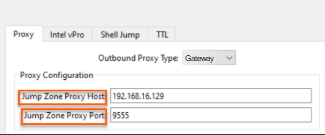
Proxy Configuration for Clustered Gateways
In previous versions, proxy configuration was only for non‑clustered Gateways, which prevents consistent configuration across deployment types.
As of RS 26.1.1, you can specify the Proxy Host and Proxy Port which enables the clustered Gateway to forward traffic through an upstream Gateway or through a specific node within another Gateway cluster.
🛠️Issues Resolved
Administrative Interface
| Product area | Description | Resolution |
|---|---|---|
| Vault | Shared SSH Vault credentials could not be used simultaneously by multiple sessions. | Shared SSH Vault credentials can now be used concurrently across multiple sessions. |
| Vault | A user unauthorized to use a Gateway was blocked from importing Assets into Vault. | Gateway authorization no longer affects a user's ability to import Assets into Vault. |
| Vault | Bulk Vault Account Provisioning experienced performance degradation in large deployments. | Performance improvements have been made to bulk Vault Account Provisioning to better support large deployments. |
| Security Providers | RADIUS authentication was available as a supported authentication method. | RADIUS authentication is now deprecated and will be removed in a future release. Migrate to a supported authentication method. |
| Misc | Peer to Peer Options labeling was unclear. | Peer to Peer Options have been updated to use clear Enabled or Disabled labels. |
| Misc | The Enable XML API and Enable Archive API options in /Login → Management → API Configuration required manual activation. | These options have been removed. Both XML API and Archive API are now always enabled by default. |
Clients
| Product area | Description | Resolution |
|---|---|---|
| RepConsole | Filtering performance for Asset lists in the RepConsole was slow. | Filtering performance for Asset lists has been improved. |
| RepConsole | Tool tip verbiage for various File Transfer buttons was unclear. | Tool tip text for File Transfer buttons has been updated for clarity. |
| RepConsole | The RepConsole restored to the incorrect monitor after being minimized. | The RepConsole now restores to the correct monitor after minimizing. |
| RepConsole | OS version parsing for RHEL 8.x/9.x systems caused the OS version to display incorrectly. | OS version parsing for RHEL 8.x/9.x systems now displays correctly. |
| RepConsole | RepConsole login failures occurred intermittently. | RepConsole login failures have been resolved. |
| RepConsole | Exporting Assets to a CSV file produced blank lines between each item. | CSV exports no longer contain blank lines between items. |
| RepConsole | The Virtual Smart Card button became disabled after stopping and restarting screen sharing. | The Virtual Smart Card button remains enabled after stopping and restarting a screen sharing session. |
| RepConsole | Asset search executed unexpectedly using partially entered text before the user pressed Enter. | Asset Item search now only executes when the user presses Enter. |
| Customer Client | An Endpoint Client encountered a problem error message appeared unexpectedly. | The error message no longer appears unexpectedly. |
| Customer Client | The chat window displayed at only half its expected size after the representative ended a Show My Screen session. | The chat window now displays at its full size after a Show My Screen session ends. |
| WebRepConsole | The desktop background on Windows 11 endpoints sometimes turned black after rebooting during an active screen sharing session. | The desktop background on Windows 11 endpoints no longer turns black after a reboot during screen sharing. |
| Jump Client | Jump Clients did not detect system proxy settings unless a user with proxies configured was currently logged in. | Jump Clients now detect system proxy settings regardless of whether a configured user is logged in. |
| Jump Client | In Atlas deployments, Jump Clients went offline during upgrades. | Jump Clients in Atlas deployments remain online during upgrades. |
| Gateway | Docker Gateways crashed when a manual proxy was configured. | Docker Gateways no longer crash when a manual proxy is used. |
| Shell | Copy/paste operations in Shell sessions experienced a noticeable delay. | Copy/paste delay in Shell sessions has been resolved. |
| Mac | Mac User Mode Jump Clients are no longer supported as of 26.1.1. | Mac User Mode Jump Clients detected during an upgrade to 26.1.1 trigger a Pre-upgrade 10 warning to prevent potential Jump Client loss. |
| Mobile Devices | Default overlays for iOS devices displayed the device "notch" unintentionally. | Default overlays for iOS devices have been updated to prevent the notch from appearing. |
📝 Requirements
- Requires Base 8.2.0
- Supports ECM Protocol 1.6
- Supports upgrades from 25.3.1 Remote Support+.
- Validated with ECM 1.6.2601.35016
- Validated with Integration Client 25.1.1
- Includes VSC 1.2.10.2
Before upgrading, ensure any SSL certificates used are either from a trusted Certificate Authority, or, for self-signed certificates, the certificate is either trusted on all endpoints or explicitly included in their installation.
⏰Deprecation Notice
Remote Support 26.1.1 is the final release to support RADIUS-based authentication. Starting in RS 26.2.1, RADIUS-based authentication will be removed and will no longer be supported. This change reflects the fact that RADIUS no longer aligns with modern security requirements and cannot be sufficiently hardened against current threat patterns. Customers using RADIUS authentication should migrate to a supported authentication method before upgrading to RS 26.2.1.
