
Consoles & downloads | PRA Pathfinder
What is the Consoles & Downloads page?
The Consoles & Downloads page provides access to the Privileged Remote Access console installer, additional utilities, and integration tools for use with the Privileged Remote Access solution.
What is the Access Console?
The access console is the interface used by your users to access all of Privileged Remote Access's features and functionality. You can access the console via a desktop client (the desktop access console) or via the web (the privileged web access console). Privileged Remote Access also offers an Android access console app and an iOS access console app.
What's the difference between the Privileged Web Access Console and the Desktop Access Console?
The Desktop Access Console:
- is an application you download to your computer.
- can only be used from the computer on which it is downloaded.
- is full-featured.
The Privileged Web Access Console:
- is accessed via a URL in a chromium-based browser.
- can be accessed from any computer.
- is a slightly modified version of the Desktop Access Console.
How is the Privileged Web Access Console useful?
The Privileged Web Access Console allows you to access remote systems using your web browser, when you do not have the ability or desire to download and install software in a desktop environment. Most of the major features of the downloadable desktop Access Console are supported in the Privileged Web Access Console, with the exception of features that require tighter integration with your operating system than browsers currently provide.
How do I access the Consoles & Downloads page?
- Sign into app.beyondtrust.io.
The BeyondTrust Home page displays. - Click the Privileged Remote Access tile, or, from the main menu, click Privileged Remote Access > Consoles & Downloads.
- The Consoles & Downloads page displays with the Access Console tab open by default.
The Access Console page
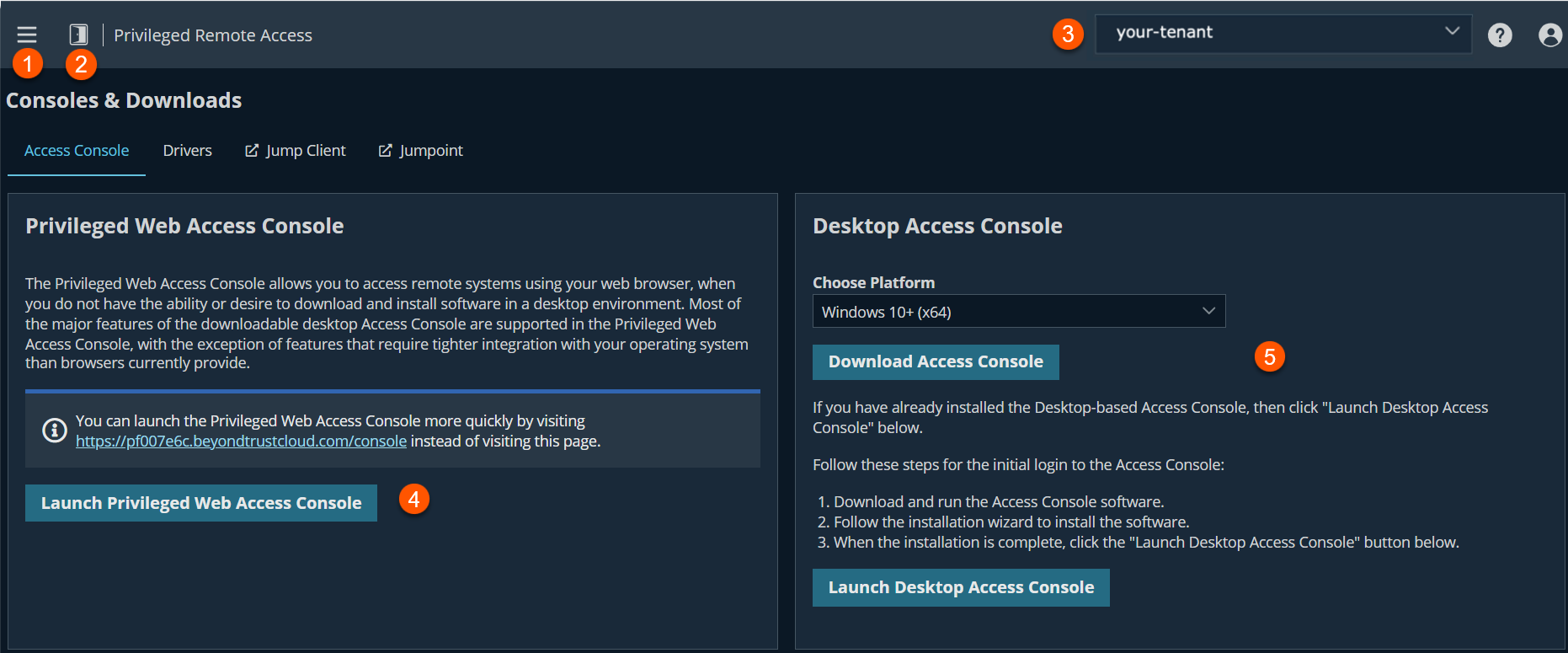
- Left menu: Easy access to all pages in Privilege Remote Access, including Status, Consoles & Downloads, My Account, Configuration, Jump, Vault, Console Settings, Users & Security, Reports, Management, and Appliance pages.
- Status: Opens the Status page.
- Header: Change your tenant site, manage your profile, and access documentation.
- Privileged Web Access Console: Starts the download process of the MSI file.
- Desktop Access Console: Starts the download process of the MSI file.
How do I launch the Privileged Web Access Console?
On the Consoles & Downloads > Access Console tab, in the Privileged Web Access Console section, click Launch Privileged Web Access Console.
NoteIf the Privileged Web Access Console is not displayed, make sure you have the Allow Mobile Access Console and Privileged Web Access Console to Connect checkbox selected on the Management > Security page.
How do I download the Desktop Access Console?
For an initial login to the Access Console, you must download and run the Access Console software. Once the software is installed you can then open the Access console by clicking the Launch Desktop Access Console button.
- From the Access Console tab, in the Desktop Access Console section, select the appropriate Platform OS.
- Click the Download Access Console button. An sra-con-installer.msi file is downloaded to your computer.
- Click the sra-con-installer.msi file to start the Access Console Wizard.
- Click Next.
- Select what user this is for.
The values are: Only for me or Anyone who uses this computer. - Click Next.
- Select the location to install, and then click Next.
- Select the option to install the Network Tunneling Service.
- Click Install.
- Click Finish.
For Windows 10+ (x64) MSI
Important infoWhen you mass-deploy consoles via MSI, ensure users authenticate with their consoles at least once prior to updating your B Series Appliance, because, during the initial login, a token from the B Series Appliance is provided to the representative console. This token requests software updates.
If the B Series Appliance is upgraded before any user logs into the representative console, or if an MSI from a previous version is used to install the representative console, the console fails to update, as it does not have the necessary token. If this occurs, the following error displays:
Error communicating with server while updating software. Please upgrade your software by downloading it from the web site. (1.1gws)"
Download and install the Windows 10+ (x64) MSI
Note for Windows 10+ (x64) MSI installation
- To install the representative console without displaying any windows, spinners, errors, or other visible alerts, append /S to the end of the EXE command.
- To deploy the installer to a large number of systems, the Microsoft Installer can be used with your systems management tool of choice.
- In your command prompt, when composing the command to install the console using an MSI, change to the directory where the MSI was downloaded and enter the command included on your Remote Support My Account page.
- In the Desktop Access Console section, select your computer system.
- Click Download Access Console.
The MSI file downloads to your machine. - Open a command prompt.
- Run the following command:
msiexec /i sra-con-win64-installer.msi
The Desktop Access Console installs on your machine.
Optional MSI installation parameters
You can include the following optional parameters for your MSI installation.
/quietor/qruns the installer without displaying any windows, spinners, error, or other visible alerts.INSTALLDIR=accepts any valid directory path where you want the console to install.RUNATSTARTUP=\accepts 0 (default) or 1. If you enter 1, the console runs each time the computer starts up.ALLUSERS=accepts "" (default) or 1. "" is the default value. This attribute is only needed when specifying per-machine installs.ALLUSERS=""results in a single user install. This forces the representative console to install in the same context that is being used to run the MSI installation. This is not ideal if Local System is used to run the installation, as is often the case with mass deployment tools. There is no way to target the install to a specified user via MSI parameters, so if you are deploying the MSI through an automated deployment system while using the single user install flag, the deployment system must run the MSI installation in the context of the same user who is expected to log in to the console.SHOULDAUTOUPDATE=<value>If you install for only the current user, you can choose to enter one of the following acceptable values:1to automatically update the console each time the site is upgraded0to require a manual console each time the site is upgradedImportant info- If you install the console for all users, consoles will not automatically update.
- If you use
ALLUSERS=1withSHOULDAUTOUPDATE=1,the representative console does notautomatically update.
Launch the Desktop Access Console
After you install the Access Console software on initial use following the steps in the How do I download the Desktop Access Console? section, the Desktop Access Console displays.
- Click Login .
- Provide your credentials using the authentication method set up by your administrator.
- Click Log in.
A dialog box displays asking if you trust the app.beyondtrust.io link. - Select Always allow app.beyondtrust.io to open links of this type in the associate app.
- Click Open Access Console.
The Desktop Access Console displays.
After the first launch, you can open the Desktop Access Console from your applications. You can also access it by going to Consoles & Downloads > Access Console, then clicking Launch Desktop Access Console under the Desktop Access Console section.
Updated 9 months ago
