
Remote Support 26.3.1 release notes
🆕 New features
Require end-user consent in RDP sessions
When a representative enters an active RDP session, Remote Support (RS) now requires the user in that session to approve access before the representative can share the screen or access files or the shell. RS asks for consent again if the session switches mid-connection. This helps you meet GDPR and works council consent requirements with no extra setup.
For more information, see Terminal session switching.
Start screen sharing in view-only mode
Administrators can now use a session policy to start screen sharing in view-only mode. The representative can see the screen but must ask the end user for approval to take control. This prevents accidental changes on the endpoint.
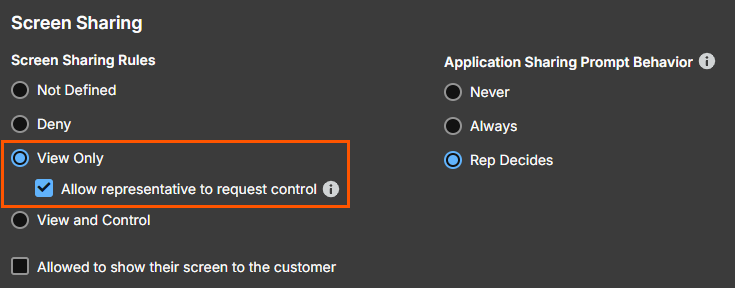
For more information, see Screen Sharing under Session Policy Settings > Permissions and Screen Sharing Tools for Desktop.
Turn off session recording for specific Assets and Asset Groups
You can now turn session recording on or off for a single Asset or a whole Asset Group, overriding the global recording policy. Only administrators can change this setting, and RS logs every change. You can stop recording where it is not allowed without turning it off everywhere.
For more information, see Jump Policies.
Schedule Endpoint Automation jobs
You can now run Endpoint Automation jobs on a one-time or recurring schedule for specific Jump Groups, tags, or endpoints. Run windows, concurrency limits, and automatic retries control how each job runs, and the audit log records the results. Routine maintenance runs on its own, inside your approved maintenance windows.
For more information, see Endpoint automation jobs.
AI Session Summaries (Beta)
AI Session Summaries has several additions that save your support team time:
- Remote Support can create a summary when a support session ends and write it into the matching ServiceNow incident, so representatives do not have to write it up by hand. Ticket details can also pass from ServiceNow to RS, so the summary reflects the ticket's context.
- Summaries now cover the full session recording, not just the first ten minutes, so they are more accurate for long support sessions.
- Retrieve session summaries through public APIs and use them in your own reporting, storage, and analysis.
- AI Session Summaries is now available for Atlas deployments.
AI Session Summaries requires Pathfinder, including sites deployed on Atlas. It is not available on sites without Pathfinder.
For more information, see AI Session Summaries.
FIDO2 authentication on Pathfinder
Remote Support on Pathfinder now supports FIDO2 authentication. Representatives and administrators can register and sign in with FIDO2 security keys or platform authenticators, just as they can outside Pathfinder. When you move to Pathfinder, you keep your existing FIDO2 sign in method.
For more information, see FIDO2 authentication.
See total active users
The Status page in /login now shows Total Active Users, right after Time Zone. This count includes users who signed in within the last 365 days and still exist in the system.
For more information, see Site status.
Use the Configuration API through the MCP gateway
The Configuration API is now available through the MCP gateway. If you use an AI assistant or automation tool that supports MCP, it can now read and change RS configuration settings without a custom REST integration. You control read and write MCP API access at the organization level, so you only grant the access you intend.
For more information, see MCP Gateway.
✨ Enhancements
Jump Client comments and tags in session reports
Session reports in /login and the Reporting API now include the Comment and Tag values set on Jump Clients. If you use these fields to track details like customer name or billing ID, you can see which customer or account a session belongs to right in the report. You no longer need workarounds like matching sessions by public IP address or pulling Jump Client data separately through the Command API.
For more information, see Jump clients and Session detail.
Monitor representative sessions from the web representative console
Team leads and team managers can now monitor their representatives' active support sessions from the web representative console. Before, this was only available in the desktop representative console. Supervisors can oversee and help their team from a browser without installing the desktop console.
For more information, see Monitor team sessions.
Start multiple Jump Items at once in the web representative console
In the web representative console, representatives can now select several Jump Items and start them all at once, instead of one at a time. This matches the desktop representative console and saves time when representatives support several endpoints in a row.
For more information, see Start multiple sessions.
Customize the Jump Client installer list
You can now save a default view for the Jump Client installer list in /login. Choose the columns that matter most to you, such as the Asset Group name, instead of seeing the same fixed columns every time. New check boxes also let you delete several Jump Client installers at once, which saves time on sites with many installers. Bulk actions require administrator permission, the same as viewing the list.
For more information, see Customize installer list.
Control Jump Client upgrades by Jump Group
You can now control Jump Client upgrades by Jump Group instead of upgrading every Jump Client at once. Choose which groups upgrade and when, so you can test a small set of customer endpoints first and roll out upgrades during your maintenance windows. Jump Clients stay available for support during a staged rollout.
For more information, see Upgrade.
Automatically import Vault domain discovery results
Vault domain discovery can now import its results automatically, so you no longer need to import them by hand. This helps you keep Jump Items and Vault accounts in sync with Active Directory as your support environment grows and changes.
For more information, see Schedule delivery.
Link session policies to group policies through the API
You can now assign attended and unattended session policies to a group policy through the API. This removes a manual step from your provisioning scripts, so you can fully set up a group policy without returning to the user interface.
For more information, see Link to session policies.
Set how long a Gateway can stay offline
You can now set how many days a Gateway can go without connecting before it uninstalls itself. The setting is in /login with the other Jump Client maintenance settings. The default stays at 30 days, so nothing changes unless you update it. Gateways that you set up early or ship to a remote site can get a longer window, so they do not remove themselves before you use them.
For more information, see Configure Gateway.
Hide the traffic node selector on the representative login page
A new setting on the Cluster tab in /login controls whether the traffic node selector appears on the representative web login page. When it's on, representatives can choose a traffic node as they do today. When you turn it off, the selector is hidden and RS connects representatives to the closest available traffic node automatically, the same as the desktop representative console. This removes a choice that can confuse representatives and cause support questions.
ImportantOnly administrators with cluster configuration permissions can change this setting, and it stays in place after restarts and upgrades.
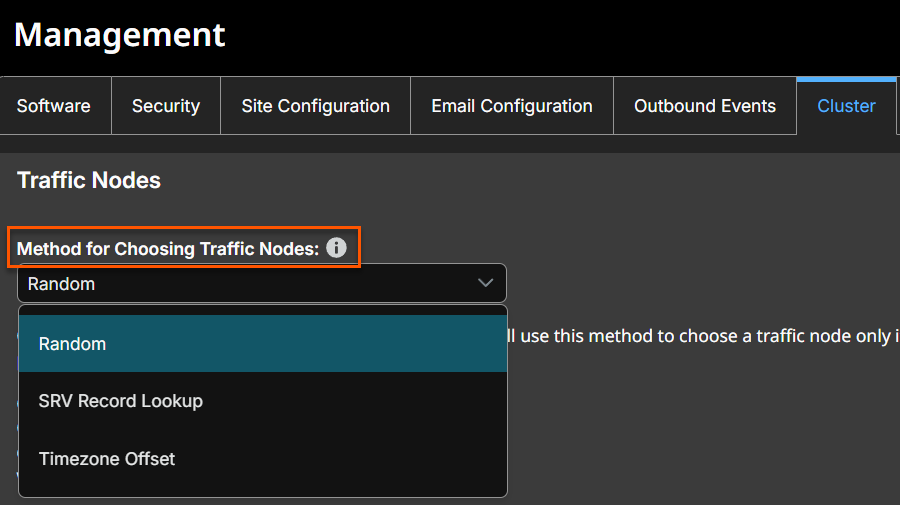
Choose a traffic node routing option in the cloud
Cloud administrators can now choose how clients pick a traffic node in a cluster. Go to Management > Cluster. Under Traffic Nodes section, select SRV Record Lookup (the default), Random, or Timezone Offset. If you use Timezone Offset, set an offset on each traffic node. If all your outbound traffic leaves through one internet egress point, you can pick a different routing option to spread sessions across several traffic nodes instead of one. Changing the method makes all Jump Clients reconnect at once, so plan the change for a maintenance window.
This feature is only available in the Cloud.
More features with the direct Password Safe integration
The direct Password Safe integration now includes features that used to require the Endpoint Credential Manager:
- Search external Jump Items through the Password Safe connection.
- Discover and inject credentials for more system types, including web and database systems.
- Use self-signed certificates when connecting to Password Safe.
The integration also needs fewer highly privileged Password Safe API permissions. Representatives get the same credential features without you maintaining a separate credential manager.
For more information, see Password Safe enhancements.
Smart card readers stay shared when the customer client restarts
When a representative shares a smart card reader into a support session, it now stays shared if the customer client restarts because the Windows user changed.
For more information, see Smart Card improvements.
Features bar is pinned by default in full screen
The features bar now stays pinned by default when a representative enters full screen mode in a support session. Full screen hides the window controls, which made it hard to exit. With the bar pinned, representatives always have a clear way out of full screen.
For more information, see Start a session, Desktop rep console, and Screen sharing.
⏰ Deprecation notices
RADIUS authentication will be removed in 27.1
Starting with the 27.1 release, Remote Support no longer supports RADIUS authentication. If you use RADIUS as an authentication provider, migrate to a supported authentication method, such as SAML, LDAP, or another supported two-factor authentication option, before you upgrade to 27.1. This notice gives you time to plan your move on your own schedule.
🛠️ Issues resolved
| Product area | Description | Resolution |
|---|---|---|
| Reporting | When viewing a session recording in the browser, the captions option disappeared and captions never displayed. | Captions are now available and display correctly when viewing a session recording in the browser. |
| Reporting | The justification entered at the start of a session was missing from downloaded Session Reports. | Downloaded Session Reports now include the justification entered at the start of the session. |
| Reporting | The Average Wait column in the dashboard's Today's Session History panel reported how long Representatives were attached to a session rather than how long customers waited. | The Average Wait column now reports how long customers waited. |
| API | The Command API get_api_info command returned a 404 error when no API account held a Command API permission, which stopped the Integration Client from pulling any data. | The get_api_info command now returns successfully, and the Integration Client pulls data as expected. |
| API | The Reporting API documentation referred to Jump Groups. | The Reporting API documentation now refers to Asset Groups. |
| Pathfinder | The Automatically begin site migration checkbox had no effect when retrieving a backup on a Pathfinder site. | Selecting Automatically begin site migration now starts site migration when retrieving a backup on a Pathfinder site. |
| Pathfinder | The Security Provider drop-down was not shown when adding or editing a Group Policy on a Pathfinder site. | The Security Provider drop-down now displays when adding or editing a Group Policy on a Pathfinder site. |
| Pathfinder | PRA administrators on a Pathfinder site were assigned the Users Group Policy by default, which does not grant Administrator permissions. | PRA administrators on a Pathfinder site are no longer assigned the Users Group Policy by default. |
| Vault | Vault was slow to process large numbers of account changes, such as during a bulk account import. | Vault now processes large numbers of account changes more efficiently, such as during a bulk account import. |
| Vault | A Vault personal credential was listed as Unassociated in the credential drop-down menu when connecting to the same system a second time. | Vault personal credentials now display correctly in the credential drop-down menu on later connections to the same system. |
| Vault | Assets were not created on re-import after Create assets was enabled on an existing Password Safe connection import rule. | Assets are now created on re-import after Create assets is enabled on an existing Password Safe connection import rule. |
| Vault | The operating system shown for a Vault endpoint stayed at the value first reported by discovery and never updated. | The operating system shown for a Vault endpoint now updates to reflect the latest discovery. |
| Vault | Importing an account or endpoint from a Password Safe discovery performed before a site upgrade returned an unknown error. | Accounts and endpoints from a Password Safe discovery performed before a site upgrade now import successfully. |
| Vault | Choosing an attribute from the column drop-down on the Vault Endpoints page moved the drop-down into the neighboring column. | The column drop-down on the Vault Endpoints page now stays in its own column when an attribute is chosen. |
| Vault | A Domain Accounts discovery using a search path that included CN=Users returned a No container found error. | Domain Accounts discoveries using a search path that includes CN=Users now complete successfully. |
| Vault | Editing and re-saving multiple import rules on a domain's scheduled discovery renamed the rules to the first rule's name and then failed with an internal server error. | Import rules on a domain's scheduled discovery now keep their names and save successfully. |
| Vault | Scheduled Discovery for a Vault Domain could not be disabled, and its import rules could not be edited or deleted, while the domain lookup was failing. Saving showed An unknown error occurred. and nothing was saved. | Scheduled Discovery for a Vault Domain can now be disabled, and its import rules edited or deleted, even while the domain lookup is failing. |
| Vault | Checking out a Vault SSH CA account whose CA key is ed25519 always failed with Failed to decrypt the account's credential. | Vault SSH CA accounts with an ed25519 CA key now check out successfully. |
| Security Providers | Selecting Save my password did not save the password until the two-factor authentication challenge had been completed. | Save my password now saves the password as expected when two-factor authentication is required. |
| Security Providers | SAML and OIDC logins from the console did not honor an alternate port configured for /login. | SAML and OIDC logins from the console now honor an alternate port configured for /login. |
| Security Providers | The Rep Console was not relaunched after the user completed OIDC authentication in the browser. | The Rep Console now relaunches after the user completes OIDC authentication in the browser. |
| Security Providers | The Web Console's two-factor authentication dialog accepted only exactly 6 digits, so RADIUS users in New PIN mode or with 8-digit token codes could not sign in. | The Web Console's two-factor authentication dialog now accepts codes of other lengths, so RADIUS users in New PIN mode or with 8-digit token codes can sign in. |
| Group Policies | The Web Console displayed an Asset's Authorization Requests section based on the Asset's own Asset Policy rather than the viewing user's resolved Asset Policy. | The Authorization Requests section now displays only when the viewer's resolved Asset Policy requires approval. |
| Group Policies | Copying a Group Policy through the Configuration API returned an HTTP 500 error. | Group Policies now copy successfully through the Configuration API. |
| Group Policies | My Account > Security warned RADIUS and other security provider users that registering an authenticator app would require two-factor authentication for the console and /login, although it is only used when required by an Asset Policy. | My Account > Security now accurately states that the authenticator app is only used when required by an Asset Policy. |
| Endpoint Automation | Paging through the Endpoint Automation endpoints API returned duplicate endpoints and silently skipped others. | Paging through the Endpoint Automation endpoints API now returns each endpoint once, without skipping any. |
| Endpoint Automation | A network error or an invalid proxy URL could crash the Endpoint Automation job runner, so job status updates were never delivered. | The Endpoint Automation job runner now handles network errors and invalid proxy URLs, and job status updates are delivered. |
| Endpoint Automation | Cancelling an Endpoint Automation job left its in-flight endpoint jobs in a non-terminal state indefinitely, permanently consuming part of the concurrent job allowance. | Cancelling an Endpoint Automation job now moves its in-flight endpoint jobs to a terminal state and releases the concurrent job allowance. |
| Endpoint Automation | The output of an Endpoint Automation script that exited immediately after printing was not captured. | Endpoint Automation now captures the output of scripts that exit immediately after printing. |
| Miscellaneous | Copying multiple Assets associated with a public portal the user did not have access to displayed an incomplete error message. | A complete error message now displays when copying multiple Assets associated with a public portal the user does not have access to. |
| Miscellaneous | A holiday portal schedule set for a future year reverted to the current year in the calendar after being saved, although the portal still honored the selected date. | The calendar now displays the selected year for holiday portal schedules set for a future year. |
| Rep Console | Each search in the Search Assets bar on the Home tab switched the console back to the active Support Session tab. | Searching in the Search Assets bar now keeps the Home tab in focus. |
| Rep Console | Local pointer rendering during Screen Sharing performed poorly. | The RepConsole now renders the local pointer more efficiently during Screen Sharing. |
| Rep Console | The sidebar did not automatically collapse when the pop out monitor option was selected while the sidebar was hidden. | The sidebar now collapses automatically when pop out monitor is selected while the sidebar is hidden. |
| Rep Console | Audible alerts in the Rep Console ignored the volume level set in the Windows Volume Mixer and played at full volume. | Audible alerts in the Rep Console now respect the volume level set in the Windows Volume Mixer. |
| Rep Console | Changing the Connection Mode of a copied Jump Client to Standby did not transition the running client, and the Rep Console incorrectly showed it as Standby [Checked In]. | Changing a copied Jump Client's Connection Mode to Standby now transitions the running client, and the Rep Console shows its status accurately. |
| Rep Console | The Rep Console could crash when the Representative logged out while sessions with active Screen Sharing were open. | The Rep Console no longer crashes when the Representative logs out while sessions with active Screen Sharing are open. |
| Rep Console | The Rep Console sometimes crashed after an audio error occurred during a session. | The Rep Console no longer crashes after an audio error occurs during a session. |
| Rep Console | An outdated console whose update token was no longer recognized by the site could neither auto-update nor log in, and the user was given no error. | The console now displays an out-of-date message instead of silently returning to the login form. |
| Rep Console | The Rep Console slowed down while an Asset was connecting, especially with large Asset lists. | The Rep Console now performs better while an Asset connects, especially with large Asset lists. |
| Rep Console | The screen sharing image appeared discolored at the start of a session when the customer had an HDR-enabled 4K monitor. | The screen sharing image now displays correct colors when the customer has an HDR-enabled 4K monitor. |
| Rep Console | Rep Console sessions could intermittently fail to resume after a network interruption on sites where network restrictions had been configured and then disabled, or were configured as a deny list. | Rep Console sessions now resume reliably after a network interruption, regardless of network restriction settings. |
| Rep Console | The Rep Console's view sometimes did not match the remote system's screen after a resolution change during a session, showing a cropped desktop and misplacing the mouse pointer. | The Rep Console's view now matches the remote system's screen after a resolution change, and the mouse pointer is positioned correctly. |
| Rep Console | The tree view expand and collapse arrows in the Rep Console displayed in the wrong color when selected in Dark Mode. | The tree view expand and collapse arrows now display in the correct color when selected in Dark Mode. |
| Rep Console | Characters typed with Ctrl + left Alt on a German-layout customer keyboard during Show My Screen, such as @ { [ \ ] } ~ |, never reached a Representative using a US keyboard layout. | Characters typed with Ctrl + left Alt on a German-layout customer keyboard during Show My Screen now reach Representatives using a US keyboard layout. |
| Customer Client | Some special characters and dead-key accents typed on non-US keyboard layouts, such as Swiss German, were dropped by the Windows Customer Client during Show My Screen sessions. | The Windows Customer Client now transmits special characters and dead-key accents from non-US keyboard layouts during Show My Screen sessions. |
| Customer Client | The Overview and Network Configuration sections of System Info were empty on Linux systems that do not ship with net-tools installed. | The Overview and Network Configuration sections of System Info now populate on Linux systems without net-tools installed. |
| Customer Client | The Representative presence watermark did not reappear after the customer's machine was locked and unlocked during a Screen Sharing session. | The Representative presence watermark now reappears after the customer's machine is locked and unlocked, and after a display change. |
| Customer Client | The Customer Client exited silently when it failed to start. | The Customer Client now displays an error dialog describing the failure when it fails to start. |
| Customer Client | Privacy Screen activated a window and caused a Windows User Account Control prompt to be dismissed. | Privacy Screen no longer dismisses Windows User Account Control prompts. The legacy privacy screen implementation used on earlier versions of Windows has been removed. |
| Web Console | The Web Console could intermittently become unavailable, accompanied by high CPU utilization on the appliance. | The Web Console now remains available without causing high CPU utilization on the appliance. |
| Web Console | The Web Console and iOS console labeled the active and standby setting for Jump Clients as Connection Type instead of Connection Mode. | The Web Console and iOS console now label the active and standby setting for Jump Clients as Connection Mode. |
| Web Console | The Quality menu in the Web Console did not indicate which option was currently selected. | The Quality menu in the Web Console now indicates the currently selected option. |
| Web Console | Cancel Invitation and Request Help were listed under Support Teams in the Share Session menu of the Web Console. | Cancel Invitation and Request Help are no longer listed under Support Teams in the Share Session menu. |
| Support Button | The Support Button was removed from the Windows desktop during a Jump Client upgrade but was not added back. | The Support Button now remains on the Windows desktop after a Jump Client upgrade. |
| Jump Client | A Windows Jump Client service could remain stopped after the Jump Client restarted itself, leaving the Jump Client showing as Active [Offline] until the service was started manually or the machine was rebooted. | The Windows Jump Client service now starts correctly after the Jump Client restarts itself. |
| Jump Client | A Jump Client's eligibility for account discovery was not recalculated after the endpoint was promoted to or demoted from a domain controller. | A Jump Client's eligibility for account discovery is now recalculated after the endpoint is promoted to or demoted from a domain controller. |
| Jump Client | The Jump Client UI on Linux could crash when its connection to the Jump Client service dropped, such as during an appliance upgrade. | The Jump Client UI on Linux no longer crashes when its connection to the Jump Client service drops. |
| RDP | The Gateway for an Asset could not be changed in the Edit Remote RDP Asset dialog when the currently assigned Gateway was offline or disabled. | The Gateway for an Asset can now be changed in the Edit Remote RDP Asset dialog when the currently assigned Gateway is offline or disabled. |
| RDP | The Rep Console sidebar and top drop-down disappeared during an RDP session with Span All Monitors enabled when any Windows monitor used a DPI scale other than 100%. | The Rep Console sidebar and top drop-down now remain visible during RDP sessions with Span All Monitors enabled, regardless of monitor DPI scale. |
| RDP | RDP and tunneled BYOT RDP sessions failed to connect to endpoints that only support TLS 1.0, such as Windows 7 and Windows Server 2008 R2. | RDP and tunneled BYOT RDP sessions now connect to endpoints that only support TLS 1.0. |
| RDP | An RDP session started with a remote application ended unexpectedly after Screen Sharing started. | RDP sessions started with a remote application now continue after Screen Sharing starts. |
| RDP | An RDP session using Span All Monitors failed and exited full screen when session logging options were enabled. | RDP sessions using Span All Monitors now work correctly when session logging options are enabled. |
| Shell | An imported Shell could not be copied from /login. | Imported Shells can now be copied from /login. |
| Mac | The Customer Client crashed on macOS when the uninstall prompt from a previous session was closed after a new session had started. | The Customer Client on macOS no longer crashes when the uninstall prompt from a previous session is closed after a new session starts. |
| Mac | The Customer Client displayed the wrong icon in the session ended message on macOS. | The Customer Client now displays the correct icon in the session ended message on macOS. |
| Mac | Enabling Privacy Screen while viewing all monitors in a session with a macOS customer turned the Screen Sharing image black for both monitors. | The Screen Sharing image now displays correctly when Privacy Screen is enabled while viewing all monitors in a session with a macOS customer. |
| Mac | The macOS 26 Local Network permission prompt reappeared for non-admin users after it had been accepted, preventing unattended Jump Client sessions. | The macOS 26 Local Network permission prompt no longer reappears for non-admin users after it is accepted, and unattended Jump Client sessions work as expected. |
| Linux | Copying and pasting between the console and the Customer Client did not work when the customer was on an Ubuntu system using Wayland. | Copying and pasting between the console and the Customer Client now works on Ubuntu systems using Wayland. |
| Linux | The Rep Console and the Jump Client could crash unexpectedly on Ubuntu 26.04 Wayland desktops. | The Rep Console and the Jump Client no longer crash on Ubuntu 26.04 Wayland desktops. |
| Linux | The Shell tab closed with an error when connecting to a Jump Client on Red Hat and Fedora based systems. Elevated shells were not affected. | The Shell tab now connects successfully to Jump Clients on Red Hat and Fedora based systems. |
| Linux | The remote mouse pointer rendered abnormally in the screen sharing view during sessions with Wayland customers. | The remote mouse pointer now renders correctly in the screen sharing view during sessions with Wayland customers. |
| Linux | The remote cursor flashed while moving and appeared as a dot when still after mouse and keyboard control was disabled during a Wayland screen sharing session. | The remote cursor now displays correctly after mouse and keyboard control is disabled during a Wayland screen sharing session. |
| Linux | Screen sharing with Wayland systems had performance and reliability limitations. | Screen sharing with Wayland systems now performs better and more reliably. |
| Linux | The Console User reported for a Jump Client could remain on the login screen account, or on a user who was no longer at the console, after a fast user switch on Linux. | The Console User reported for a Jump Client now updates correctly after a fast user switch on Linux. |
| Linux | Screen Sharing with a Wayland system crashed when the remote system's screen resolution or display scale was changed during the session. | Screen Sharing with a Wayland system now continues when the remote system's screen resolution or display scale changes during the session. |
| Mobile Clients | The Auto Assign option was disabled automatically after an Issue Submission session ended on some devices. | The Auto Assign option now stays enabled after an Issue Submission session ends. |
| Mobile Clients | A Customer Client session could crash and disconnect during screen sharing from an Android device. | Customer Client sessions no longer crash or disconnect during screen sharing from an Android device. |
📝 Requirements
- Requires Base 8.4.0
- Supports upgrades from 25.3.5 Remote Support+
- Supports ECM Protocol 1.6
- Validated with ECM 1.6.2606.28954
- Validated with Integration Client 26.3.1.244
- Includes VSC 1.4.0.0
⌛ End of support
The product versions below have reached, or are nearing, their end of support. Upgrade to the latest version to continue receiving updates and support. Support ends on the last day of the month listed below.
For more information about supported versions, see Product Support Life Cycle.
| Product version | End of support |
|---|---|
| Out of support | |
| Remote Suport 24.2 | July 2026 |
| Near end of support | |
| Remote Support 24.3 | November 2026 |
