
Identity Security Insights 26.11
✨ Enhancements
Update multiple findings at once for a recommendation or detection type
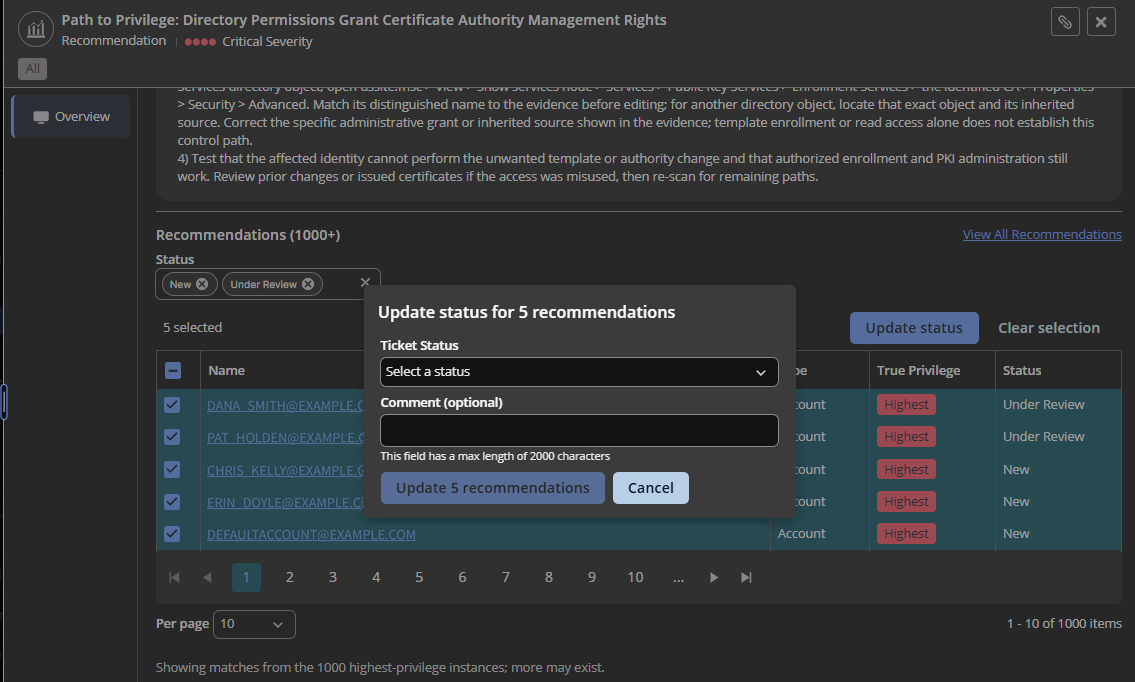
Triage goes faster when you don't have to open findings one at a time. When you open a recommendation or detection type, its side panel now lists every finding of that type, so you can select the findings you've reviewed and set their status in one step.
To get started, go to the Recommendations or Detections page and select a recommendation or detection type in the grouped view. The side panel opens with the full list of findings for that type.
- View every finding of the type: The side panel lists all findings for the recommendation or detection, not just the top ten, in a paged grid of 10, 25, or 50 rows per page. The grid filters to New and In Review by default so open work appears first.
- Select across pages: Select individual rows, or use Select all on this page. Your selection carries over as you page, and a running count shows how many findings you've selected.
- Apply one status and comment to every selected finding: Select Update status, choose the new status, and add an optional comment. Insights records the status and comment against each selected finding and confirms when the update is submitted.
For more information, see Detections and Recommendations.
Findings Explorer report
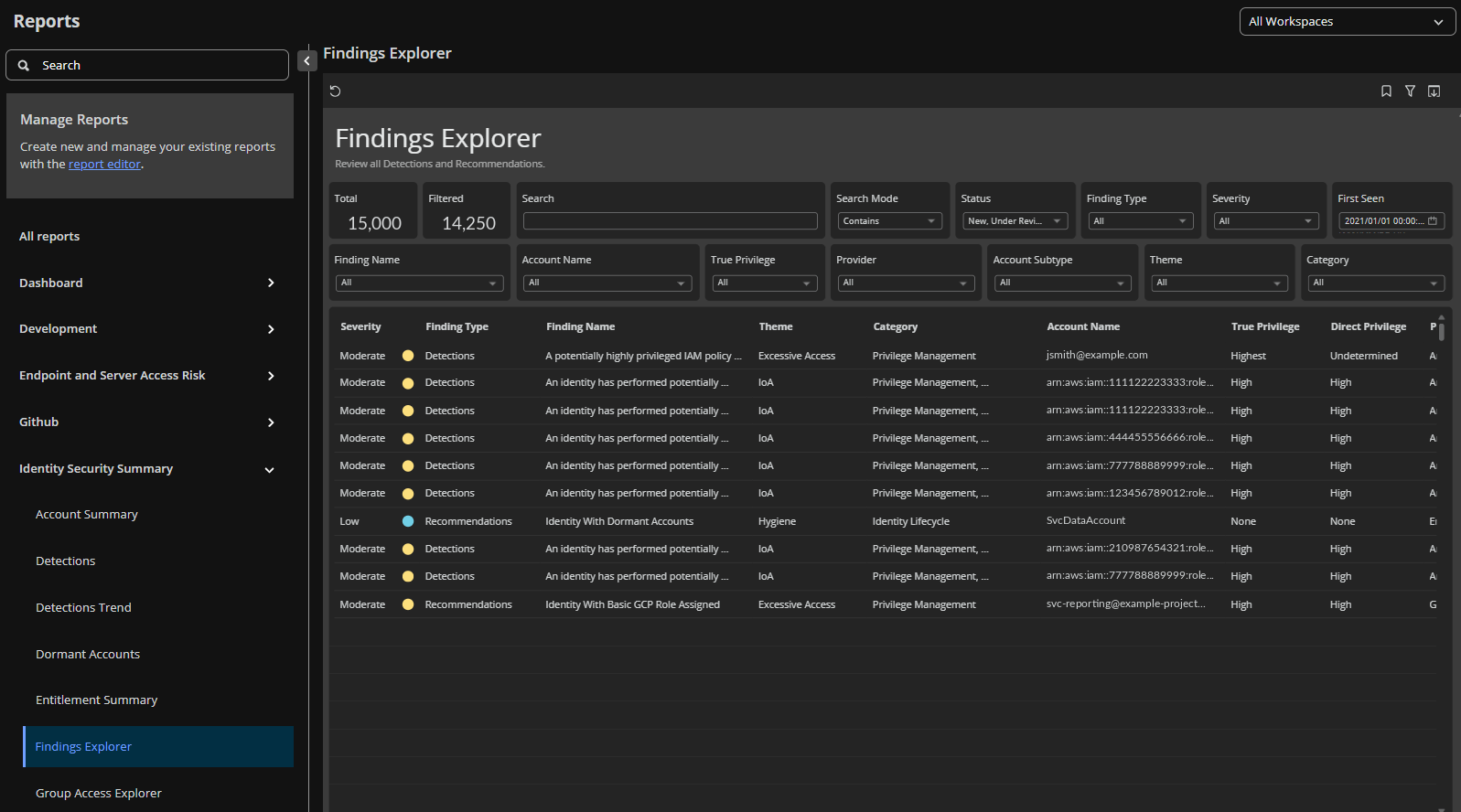
The new Findings Explorer report shows detections, recommendations, and every other finding type in a single ungrouped grid. Filter down to exactly the set you need, and then export it for the team responsible for remediation.
To open the report, go to Reporting > Identity Security Summary > Findings Explorer.
- Search to include or exclude: Enter a term and choose Contains or Does not contain to include everything that mentions a provider, or remove findings you've already ruled out, without building a filter for each column.
- Export with remediation context: In addition to severity, finding name, account, provider, status, and true and direct privilege, the CSV export includes each finding's concern, remediation guidance, environment, and scope. These four fields are hidden in the grid to keep it readable.
- Focus on open work: The status filter defaults to New and Under Review, and you can narrow results further by finding type. Add other statuses when you need the full history.
For more information, see Identity Security Summary in Reporting.
New columns in the Users with Access to Endpoints report
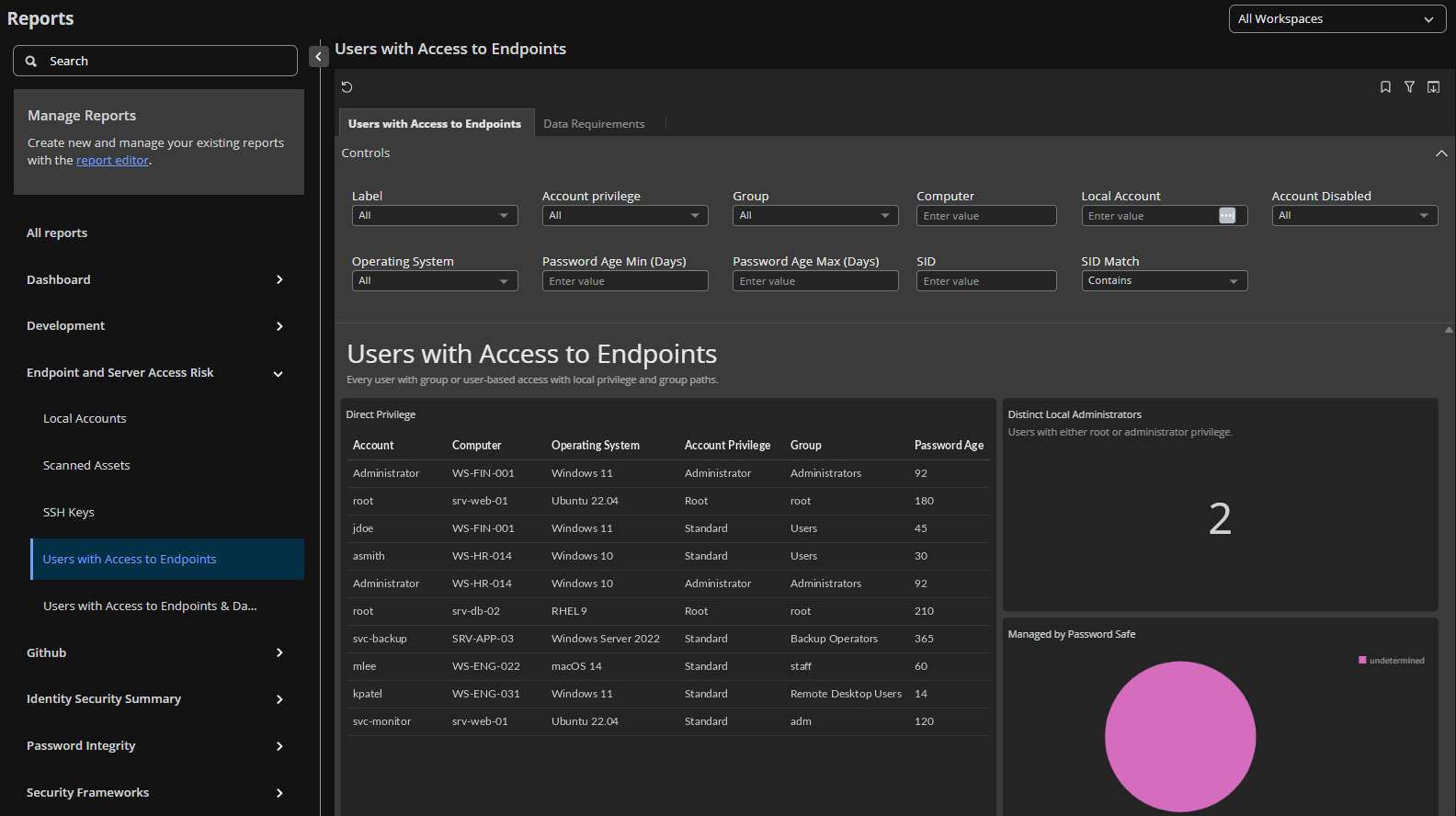
The Users with Access to Endpoints report includes four new columns that provide the detail you'd otherwise add manually after exporting.
- Account Disabled: Shows whether each local account is disabled as a True or False column, in addition to the existing filter. Use it to find built-in accounts that should be disabled across all servers at once.
- Operating system: Shows the OS string reported by the scan for each endpoint, so you can split your review by platform without cross-referencing another inventory.
- Password age: Shows password age in days. Filter for passwords older than your rotation policy to find the accounts that need attention.
- SID: Search by SID, including matching the end of the value, to find built-in local Administrator accounts by their -500 suffix, even after they've been renamed.
All four columns include filters and are included when you export the report.
For more information, see Endpoint and Server Access Risk in Reporting.
