
Identity Security Insights 26.10.1
🆕 New features
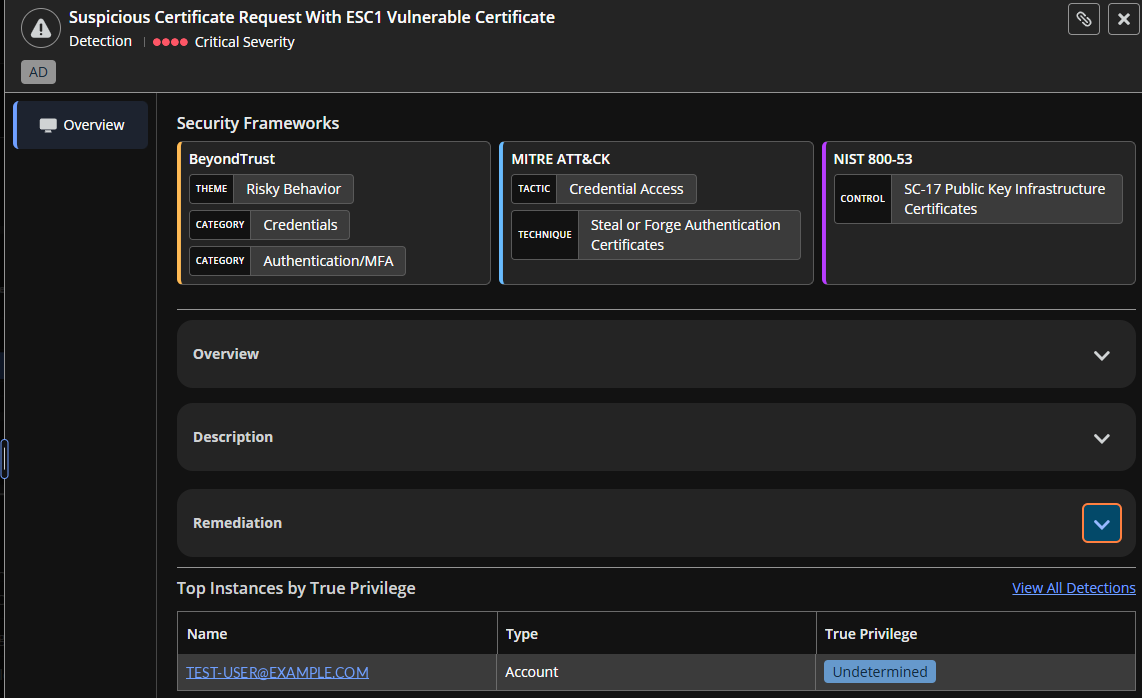
BeyondTrust themes and categories: Our own framework for classifying identity risk
Insights now classifies detections and recommendations with a security framework built by BeyondTrust Phantom Labs for identity risk. Each finding gets a theme that names the kind of risk and one or more categories that name the part of your environment it affects. You can tell what a finding is about, and who should own it, before you read the details.
What you get
- Themes – the nature of the risk: Each finding has exactly one theme:
- Hygiene: Something has decayed, like a stale password or a dormant account.
- Misconfiguration: Something is set up wrong, like an over-permissive policy or a missing control.
- Risky Behavior: Something a user or account did, like turning off MFA.
- Excessive Access: An identity, group, or role has more privilege than it needs.
- IoA (Indicator of Attack): Activity that looks like an attack, like password spraying or MFA fatigue.
- IoC (Indicator of Compromise): Signs that something is already compromised, like credentials found in stealer logs.
- Categories – the part of your environment affected: Each finding has one or more categories, which point to the team that owns that area:
- Identity Lifecycle: Onboarding, dormancy, reactivation, and offboarding.
- Privilege Management: Role assignments, escalation paths, and role-based access.
- Credentials: Passwords, API keys, certificates, and secrets.
- Authentication/MFA: Sign-in methods, MFA policy, and session and token handling.
- AI: Permissions and activity of AI agents and models.
- External Access/Federation: Guests, OAuth and OIDC apps, federation, and app consent.
- Data Access: Object-level access, sharing rules, and public access.
- Logging & Audit: Audit trails, scanning, and alert handling.
- Infrastructure: Networks, IP filtering, and environment hardening.
- Alongside the industry frameworks: The section also shows each finding's MITRE ATT&CK tactic and technique and NIST 800-53 control, so you can tie it back to the frameworks you already report against.
Where to find it
- Detections and Recommendations: The Security Frameworks section on the Overview of a finding's side panel.
Why it matters
MITRE ATT&CK and NIST 800-53 describe how attackers operate and which controls apply. BeyondTrust's themes and categories describe the identity problem itself, so a finding means the same thing no matter which provider it came from.
For more information see, Recommendations and Detections.
Deeper Okta coverage: Catch the settings attackers look for first
One weak Okta setting can open the door for every user behind it. Insights now checks your Okta configuration with 20 new recommendations and 3 new detections, so you can close those gaps before an attacker finds them.
What you get
- Safer admin access: Find Super Admins who are dormant, suspended, or simply too many, and an Admin Console that doesn't require MFA.
- Tighter sign-in and session policies: See where sessions last too long, MFA rules are missing, or ThreatInsight isn't blocking threats.
- Stronger MFA and passwords: Catch weak factors like SMS and security questions, and password policies that fall short on length or lockout.
- Apps and tokens in check: Spot wildcard redirect URIs, over-scoped OAuth tokens, and apps that share one password across users.
- Alerts on persistence: Get a detection when an admin creates an API token, an Org2Org app links your org to another Okta org, or a new inline hook sends identity data to an external service.
Where to find it
- Recommendations and Detections: The new findings for your Okta connectors.
Step-by-Step remediation: Know how to fix it, and confirm it's fixed
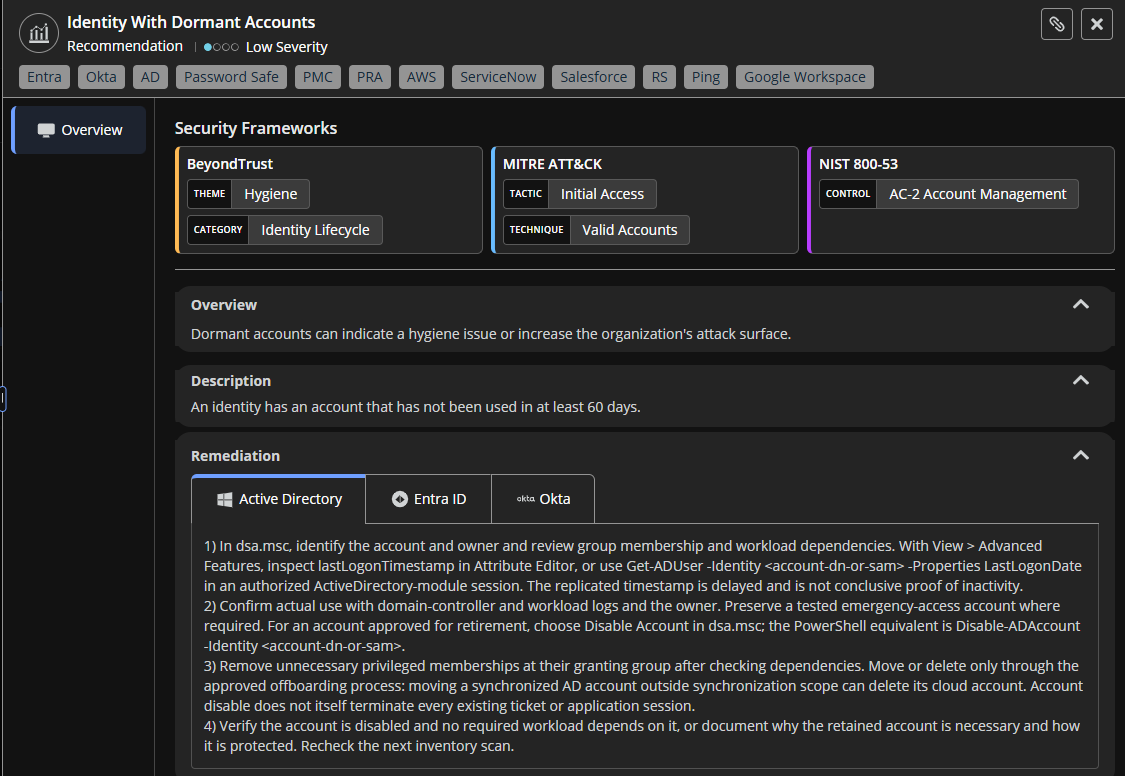
Finding the problem is half the job. Insights now helps with the other half. Remediation for detections and recommendations is a numbered list of steps with console paths and commands.
What you get
- Steps you can follow in order: Steps include console locations and commands where they apply, so you can work through the fix without looking up vendor docs.
- A built-in check: Most remediations end with a step to verify the change took effect, so you know it worked before you close the finding.
- A tab for each provider: For findings that span more than one provider, the Remediation section shows a tab for each.
- Only the steps that apply: When you open the finding for a specific account, you see only the steps for that account's provider.
Where to find it
- Detections and Recommendations: The Remediation section of a finding's side panel.
For more information, see
- Remediation steps in Recommendations
- Remediation steps in Detections
Send detections to Forcepoint DSPM
Forcepoint now has its own tile on the Integrations page. Use it to send Insights detections to Forcepoint DSPM through a webhook, so your data security team sees identity threats alongside their data risk.
See Forcepoint DSPM for setup steps.
✨ Enhancements
A clearer side panel: Investigate and act on findings in one place
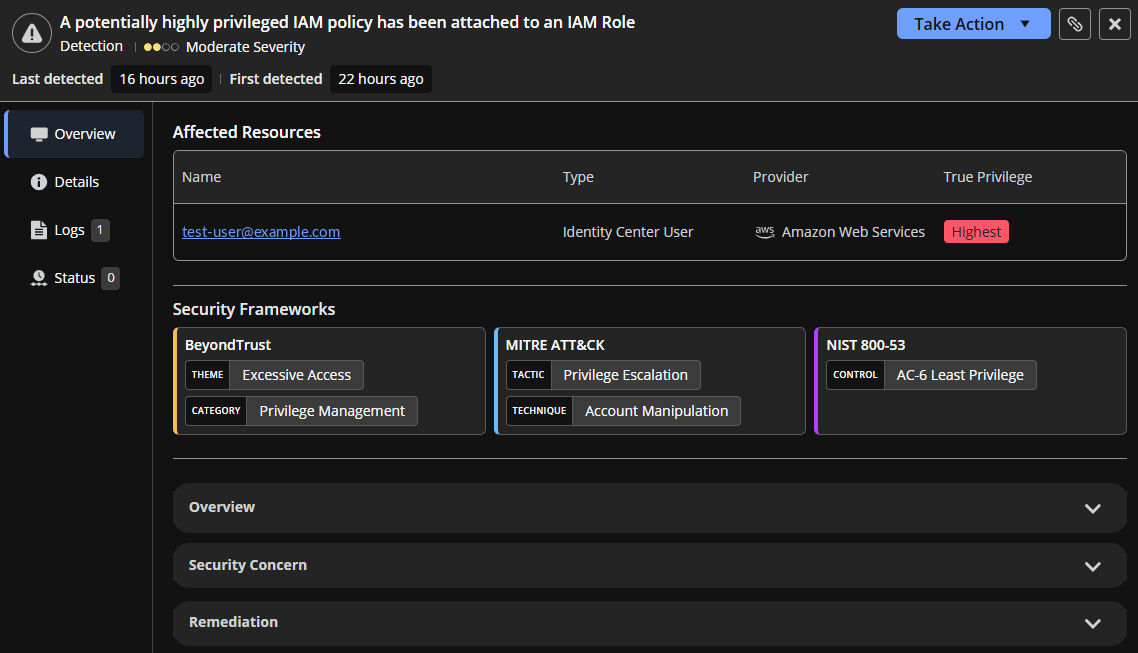
Evidence, context, and response now each get their own tab. Open a detection or recommendation and a redesigned side panel shows what was affected, the evidence behind it, and its status history, so you can go from first look to action without scrolling through one long panel.
What you get
- What was affected, first: The Overview tab leads with the affected resources – name, type, provider, and true privilege – each linking to its own side panel, followed by the Security Frameworks, Overview, Security Concern, and Remediation sections.
- Logs you can read and keep: The Logs tab lists each log record with the time it happened. Switch between table and tree views for JSON, copy a single record, or download them all as a JSON file.
- Details at a glance: The Details tab lists additional details as fields and values, so the specifics are easy to scan and compare.
- Status and history together: Set the status and add a comment on the Status tab, and see who changed it, when, and why.
- Act from the header: The header shows severity and when the finding was first and last seen, with a Take Action button that sends it to a configured webhook.
- Shaped to each finding: Tabs and sections adapt to what the finding has. A recommendation shows only the tabs it has content for, and, where available, also shows its Security Graph path and an AI explanation.
Where to find it
- Detections and Recommendations: Select a row in the Ungrouped view.
- Account and identity side panels: Select an item on the Detections or Recommendations tab.
- AI Agents: Select an item in the Findings list.
See which connectors need attention
When any of your connectors need action, the Insights dashboard now shows how many at the top of the page. Select the alert to go straight to your configured connectors, filtered to the ones that need attention. This replaces the Connector Health widget.

Grouped connector errors: See what your connector can't reach, and why
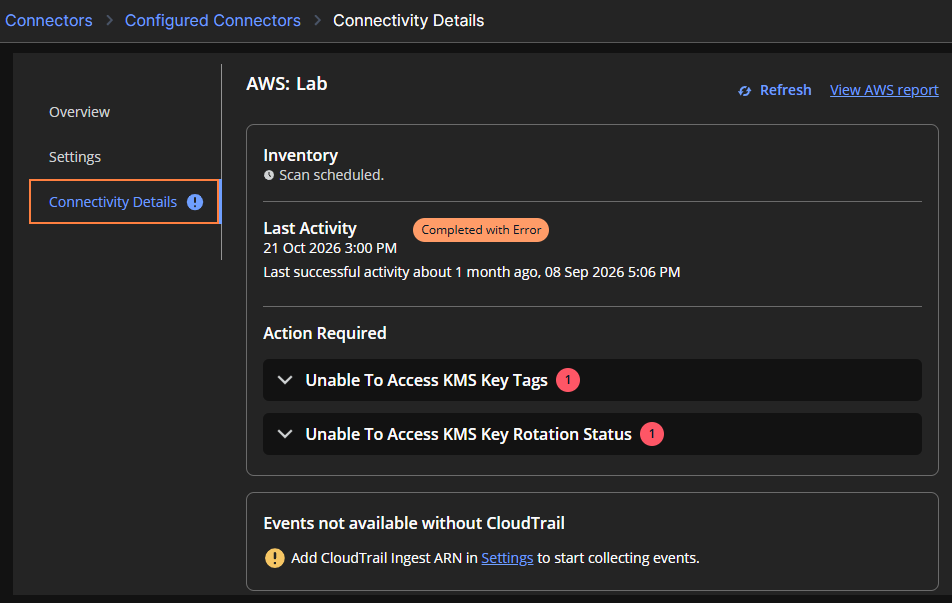
One look now tells you what's blocking a connector. Connectivity Details groups errors by what the connector couldn't access, with the reasons listed underneath, so you spend less time reading a flat error list and more time fixing the problem.
What you get
- The objects behind an error: When an error names specific objects, you see how many and can copy the list to share with whoever manages them.
- A clear result for each activity: The last run is marked Success, Completed with Error, or Failed, so you can tell a partial run from one that stopped.
- Connector-wide problems up top: Issues like invalid credentials appear in a banner, with a link to the connector's setup guide.
- A pointer to where to look: The Overview tab's Action Required banner and an icon on the Connectivity Details tab lead you to the errors.
Where to find it
- Connectivity Details: The tab on a connector's detail page.
For more information, see View connectivity details.
