Identity Security Insights 26.07
🆕 New features
Claude AI Enterprise
See who's in your org and how access flows
Claude showed up in your org the way most AI tools do – fast, useful, and outside your access reviews. The new Claude AI Enterprise connector pulls your Anthropic organization into Insights as a connected identity graph – users, RBAC roles, groups, projects, and the organization itself, wired together by their real relationships. Connect it and you can finally see who's in your Claude org and how access flows.
What you get
- Your Claude users, in the Accounts inventory: Each person in your Claude org comes in as an account – tied to their email and organization role, and filterable to the Claude connector. The opaque seat list in the Anthropic admin console becomes a reviewable inventory of human access.
- The full Claude access structure, as a graph: Users, RBAC roles, groups (provisioned from your identity provider or created directly in Claude), projects, and the organization come in as nodes you can explore. The permissions behind every role are captured too – chat, Claude Code, skill creation and sharing, web search, memory, and the sensitive ones like user management and billing – so Insights can reason about role scope.
- Effective access, traced end to end: Insights resolves the real paths – user to group to role, user to project ownership, and user up to organization-level control through owner and primary-owner roles. You see not just that someone is in your Claude org, but how they inherit a role and who holds the keys to the whole organization.
- A bridge from your workforce identity to Claude: Connect both Okta and Claude and provision Claude access through Okta, and Insights links each Okta identity to its matching Claude user. You can follow one person from their corporate identity straight into their Claude access. (Requires both connectors in the same Insights tenant.)
Where to find it
- Security graph: the whole picture in one view: users, roles, groups, projects, organization-level control, and the Okta→Claude link.
- Accounts page: Claude users in the inventory, filterable to the Claude connector.
✨ Enhancements
Azure KeyVault and SQL
Every path to your secrets, certs, and databases
Your Azure secrets are only as safe as the quietest path to them, and that path is rarely the obvious one. Insights now tracks not just who was handed direct access, but who can grant themselves access through management rights they already hold – mapping certificates alongside secrets, exposing control-plane escalation routes, and bringing SQL Servers and Managed Instances into the graph.
What you get
- Certificates get the same scrutiny as secrets: KeyVault certificates are now first-class citizens in the access graph – traced from the principal down to the individual cert and listed as named entitlements. You can see exactly which identities can pull certificates from a vault via RBAC, so the private keys behind your TLS, signing, and auth workflows stop being a blind spot.
- The "I'll just give myself access" path, exposed: A principal with vault-management rights – Owner, Contributor, or Key Vault Contributor – needs no explicit data-plane grant to read your secrets and certificates; they can rewrite access on the vault and walk right in. Insights now flags these as escalations, both as escalation entitlements and as a visual path from "manages the vault" to "reads everything inside it" – the latent privilege a standard access review never catches.
- SQL Servers and Managed Instances join the map: Azure SQL Servers and SQL Managed Instances are now in the access graph, with read and write data-plane access traced through RBAC and listed as entitlements. Your databases get the same identity-to-resource visibility you already rely on across the rest of your Azure estate.
AWS Bedrock AgentCore
See who can take over your AI agents
Insights now maps the privilege paths behind AWS Bedrock AgentCore. Your agents – runtimes, harnesses, code interpreters, and browsers – each run with an IAM execution role. Insights traces who can hijack that role, who can hand it to an attacker, and what data your agents can reach, surfacing each path as a named entitlement on the identity or account it belongs to.
What you get
- See who can take over an agent's role: Insights flags any user or role that can read an agent's execution-role credentials by running code inside it – through a runtime command, a code interpreter session, or a browser session. If a principal has one of these paths, treat it as already holding that role.
- Catch role hand-offs into AgentCore: Insights flags principals that can pass a role AgentCore is trusted to assume – the step that lets someone launch an agent as a role they don't otherwise hold. Each surfaces as a named entitlement on the identity, so you get a clear list of who can do it and needs locking down.
- Protect what your agents know and read: Insights flags who can modify or delete a Bedrock knowledge base – poisoning it changes what every agent reading it retrieves. It also traces the S3 buckets an agent can reach through its knowledge base, so sensitive data one hop from an agent stops being invisible.
- Trace an agent's blast radius: Each agent component is bound to the role it runs as, giving you the starting point for "if this agent is compromised, what can it touch?" without hand-tracing IAM policies.
Where to find it
- Entitlements list and Entitlements tab: each path appears as a named entitlement on the relevant identity or account.
- Security graph: the AgentCore components and their role bindings render here too, so you can follow a path end to end.
Important informationExisting AWS connectors must re-run the updated CloudFormation template to grant the read permissions these entitlements depend on. Until it's applied, connected AWS environments won't surface the new AgentCore findings.
GitHub posture coverage
Close the gaps attackers look for first
Your GitHub org is where your source code, secrets, and CI/CD pipelines live, and a handful of quiet misconfigurations are all it takes to turn it into an entry point. Insights now checks your GitHub environment for the gaps that matter most – leaked credentials, missing guardrails, over-broad access, and security controls switched off. Connect GitHub and get a prioritized list of what to fix and what to watch.
What you get
- Stop secrets before they leak – and chase down the ones already exposed: Insights flags repos that have GitHub Advanced Security but leave secret scanning or push protection off – the controls that catch and block committed credentials. It also surfaces open secret scanning alerts where GitHub has confirmed the exposed credential is still active, so you can rotate it before someone else uses it.
- Lock down org-wide access defaults: We flag organizations that default every member to write or admin access on all repos, and organizations that don't require two-factor authentication – the settings that turn one compromised account into org-wide code access.
- Contain over-shared secrets and unprotected code: Insights flags Actions secrets shared with every repo in the org – where a single malicious workflow anywhere can exfiltrate them – and repos whose default branch has no protection, leaving it open to direct pushes, force-pushes, and history rewrites that bypass review.
- Keep dependencies patched automatically: We flag repos with Advanced Security enabled but Dependabot security updates turned off, so known vulnerabilities don't sit unpatched while the tooling to fix them goes unused.
- Catch security controls being switched off: Insights watches your GitHub audit log for the moment someone disables OAuth app access restrictions or the org IP allow list – changes that silently open your org to any authorized app or any IP on the internet. You find out when it happens, not after it's exploited.
ServiceNow AI agents and APIs
See them and who can reach them
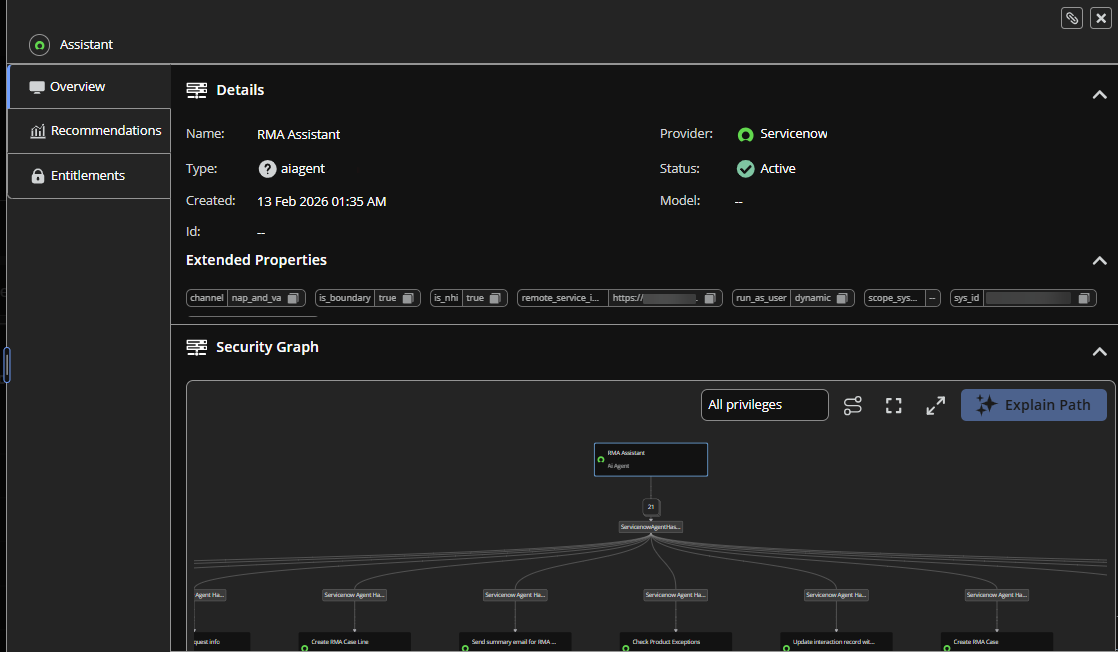
ServiceNow stopped being just a ticketing system a while ago. It runs AI agents, registers MCP tools, brokers OAuth apps, and exposes scripted REST APIs; each a way to read or change your data, and most invisible to a normal access review. Insights now pulls that automation and API surface into the ServiceNow security graph, alongside the users, roles, and ACLs already there.
What you get
- Scripted REST endpoints – including the ones open to anyone inside: Every scripted REST operation comes in as a node, with its HTTP method, URI, and whether it even requires authentication or ACL authorization. Insights flags endpoints that require no ACL authorization as reachable by any internal user, so an API that quietly skips authorization becomes something you can see and question.
- AI agents and MCP tools, mapped to what they can invoke: Model Context Protocol servers, their registered tools, and your gen-AI agents are all in the graph – and so are the chains between them: which server exposes which tool, which tool calls which REST endpoint, and which agent reaches out to an external (A2A) provider. You can follow an AI tool from its definition to the API it can hit, and spot where an agent crosses the boundary to something outside your instance.
- OAuth apps that act as your users: OAuth entities configured to act as a specific user show up as a path to that user – and where an app has actually minted tokens impersonating a user through a non-interactive grant, that's drawn too. That separates "could impersonate" from "has held a token as," so machine identities quietly operating as a person are no longer hidden.
- Who can reach the agents and endpoints: The ACLs that grant access to AI agents and REST endpoints are wired in as edges carrying the operation they authorize. Combined with the roles and users already in the graph, you can trace from a person or role to the agent or API they're allowed to drive – not just that the agent exists, but who can set it in motion.
Where to find it
- AI Inventory page: Your ServiceNow gen-AI agents show up in the AI Agents tab and your MCP tools in the AI Tools: tab, alongside the rest of your AI estate. Select one to open its side panel and trace its access and connections.
- Security graph: REST endpoints, OAuth apps, MCP servers, and external (A2A) providers appear through their connections rather than as a browsable inventory. You meet them as you explore outward from an account, role, ACL, or agent: a REST endpoint via the role or ACL that can call it, an OAuth app via the user it acts as, an external provider via the agent that reaches it. Follow those ACL, invocation, and impersonation edges to see what each identity can actually touch.
See inside your AI tools and datasets
Who reaches them and how
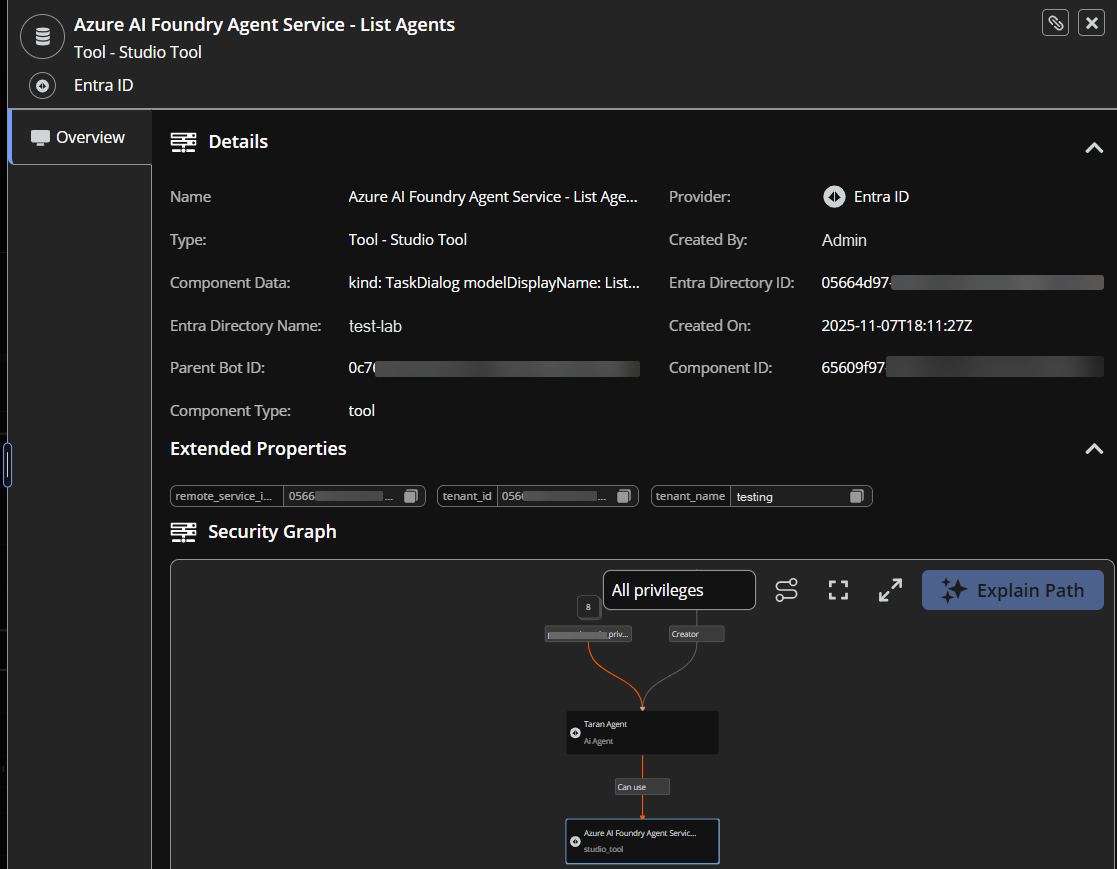
Your AI agents are only as trustworthy as the tools and data behind them, and now you can open either one and see the whole story. Pull up any AI tool or dataset and its side panel lays out a security graph plus focused grids of exactly who can reach it and what it connects to, sourced from live relationship data across your clouds. Click in, follow the path, and know in seconds whether a sensitive dataset or a powerful tool is reachable by someone it shouldn't be.
What you get
- A security graph on every tool and dataset: Each side panel opens with a visual graph rooted on that tool or dataset, so you can trace inbound access paths without leaving the panel.
- Principals who can access, with privilege at a glance: A grid lists the security principals – users, roles, and accounts – that can reach the selected tool or dataset, each tagged with its true privilege so the riskiest access rises to the top. Names link straight to that principal's own panel to keep investigating.
- For tools: what uses them and what they can do: See the agents that call a tool alongside its purpose, plus an Actions/Roles grid showing the roles and execution permissions the tool carries – the difference between a harmless helper and a privileged path into your environment.
- For datasets: what trains on them and where they live: See which agents draw on a dataset for pre-training and the storage location backing it, so you can spot sensitive data feeding models or sitting in the wrong place.
- Coverage across your AI estate: The access mappings span AWS, Azure, GCP, ChatGPT, OpenAI, Salesforce, and ServiceNow – including the latent escalation paths where someone can grant themselves access to a tool or knowledge base rather than holding it directly.
Where to find it
- AI Inventory page: Under AI Agents, open the AI Tools or AI Datasets tab and select any row to launch its side panel.
- From an agent: Open an agent's side panel, scroll to Agent Tools or Knowledge Sources, and select a tool or dataset to open its detail panel as an overlay.
Clickable edges
Stop guessing what a connection means
Your graph has always shown you that two things are connected. Now it tells you exactly what that connection grants. Edges in the security graph are clickable: select the line between a user and a resource, a role, or another identity, and a details card opens with everything behind that relationship – including the specific permissions it carries.
What you get
- See the actual permissions an entitlement grants: Where a connection or entity carries permissions – an Active Directory ACL like
GenericWriteorWriteOwner, or a Claude role grantingclaude_codeandweb_search– those granular actions (its primitives) are shown up front instead of buried in extended properties. A long list is trimmed to the most significant entries under a Top Primitives heading; otherwise you get the full set under Primitives. - The same permission detail wherever you investigate: Primitives now surface in entitlement details panels and generic details panels too – so whether you're clicking through the graph or drilling into an entitlement, you get a consistent answer on what an entity can actually do.
Node graph
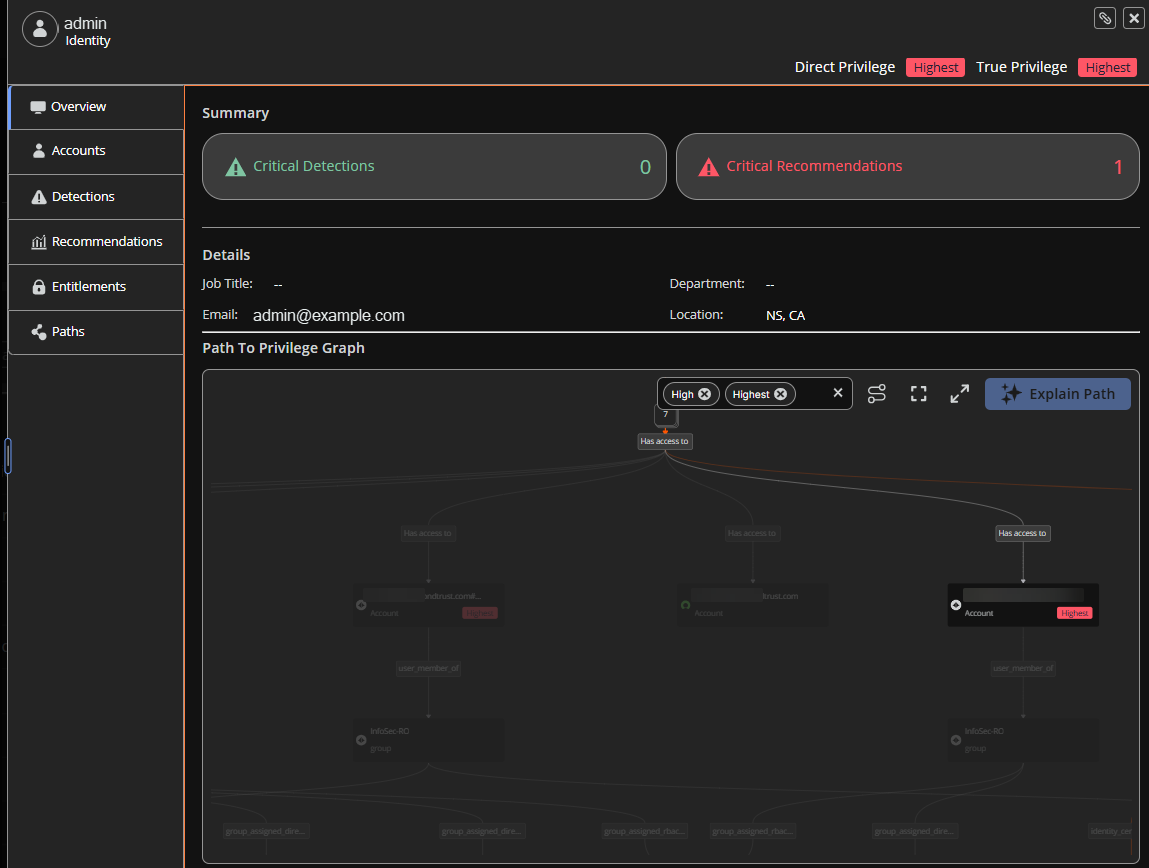
Find explain faster, keep your bearings
Two small but welcome refinements to the node graph. The Explain button now lives in the top control bar alongside the rest of the graph controls, so it's always where you expect it. And when you turn on Highlight Path, the paths outside your selection no longer all but vanish, they stay faintly visible in the background, so you can focus on the path you care about without losing sight of how it sits in the wider graph.