---
updatedAt: 2026-07-17T18:52:10.000Z
---

# Just-in-time (JIT) settings | EPM-WM Pathfinder

Activate <Glossary>JIT</Glossary> settings for application access and admin access.

> ℹ️
>
> To manage JIT access requests, you need one of the following:
>
> * Administrator or Request Manager role
> * **Manage Application Access Requests** permission (application requests)
> * **Manage Admin Access Requests** permission (admin requests)
>
> For more information, see [User management](https://docs.beyondtrust.com/epm-wm/docs/pathfinder-epm-user-management).

<Tabs>
  <Tab title="JIT application access">
  <p>
    Application access provides access to specific applications as defined in policy.</p>
<p>You must activate the Just-in-Time (JIT) feature to use the EPM-WM JIT access management system.
  </p>
  <p>
    To use JIT application access, you require an API account with access
    to the JIT API. See
    <a href="https://docs.beyondtrust.com/epm-wm/docs/configure-api-settings">
      API settings
    </a>.
  </p>
  <p>To activate JIT application access:</p>
  <ol>
    <li>
      Sign into <b>app.beyondtrust.io</b>.
      The <b>BeyondTrust Home</b> page displays.
    </li>
    <li>
      From the top left of the page, click
      <img
        src="https://files.readme.io/dc5ec6ab65e7970de9db2b13707e2dd57a4617f070203d9609de96d5b09f935e-menu-icon.png"
        alt="Menu icon">
      <b>Endpoint Privilege Management for Windows and Mac Configuration</b>.
      <br>
      The <b>Configuration</b> page displays.
    </li>
    <li>
      Select <b>Just-in-time (JIT) Access Settings</b>.
    </li>
      <img src="https://files.readme.io/3137ec95daded0dd5826fca37cc1c889d7d09423dd1d8168e4105850df6a4976-c4fcd6769164a83a6affca5425e39457bc068abe44e34cacb6b1140ec36a0f1d-config-jit-access-settings.png" alt-"JIT access settings">
  </ol>
  <ol start="4">
    <li>
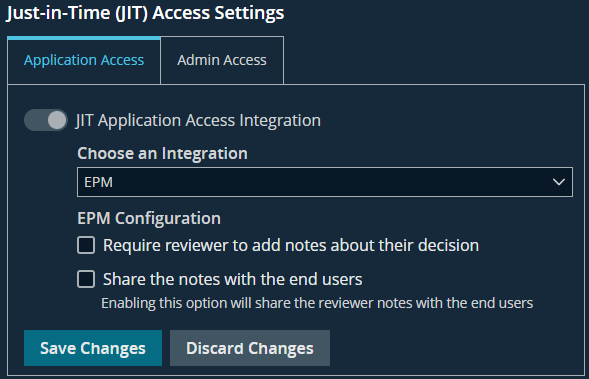
      Select <b>Application Access</b>.
    </li>
    <li>
      Select the toggle,
      <b>JIT Application Access Integration</b>.
    </li>
    <li>
      From the list, select the integration type,
      <b>EPM</b> or <b>ServiceNow</b>.
      <ul>
        <li>
          For ServiceNow, see
          <a href="https://docs.beyondtrust.com/epm-wm/docs/servicenow-user-request-integration#configure-the-servicenow-integration-in-epm">
            Configure the ServiceNow integration in EPM
          </a>.
        </li>
        <li>
          For EPM:
          <ul>
            <li>
              Check the box to require notes to support the user's approval
              or denial decision.
            </li>
            <li>
              Check the box to share the notes with the end users.
            </li>
          </ul>
        </li>
      </ul>
    </li>
    <li>
      Select <b>Save Changes</b>.
    </li>
  </ol>
  </Tab>
  <Tab title="JIT Admin access">
   <p>
     Admin access provides admin access for a defined period of time for standard users to accomplish specific tasks.</p>
<p>You must activate the JIT admin access before you can use the admin access on a workstyle.
</p>
<p>
  To activate the admin access:
</p>
<ol>
  <li>
    Sign into <strong>app.beyondtrust.io</strong>.<br>
    The <strong>BeyondTrust Home</strong> page displays.
  </li>
  <li>
    From the top left of the page, click
    <img src="https://files.readme.io/dc5ec6ab65e7970de9db2b13707e2dd57a4617f070203d9609de96d5b09f935e-menu-icon.png" alt="Menu icon">
    &gt; <strong>Endpoint Privilege Management for Windows and Mac &gt; Configuration</strong>.
    The <strong>Configuration</strong> page displays.
  </li>
  <li>
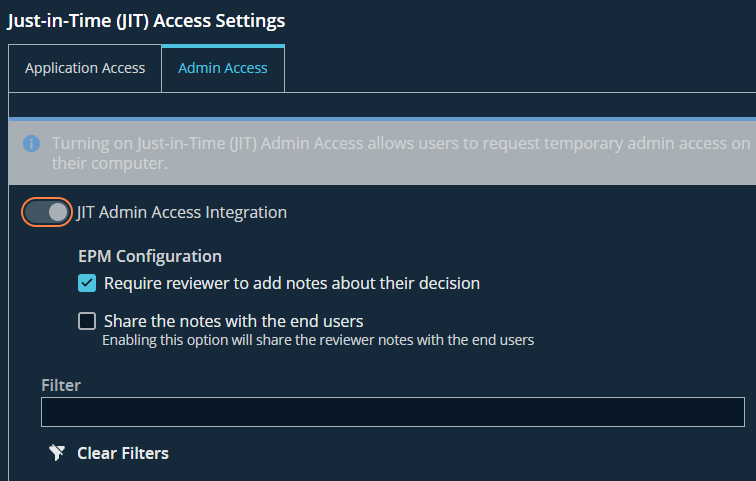
    Select <strong>Just-in-time (JIT) Access Settings</strong>, and then <strong>Admin Access</strong>.
  </li>
  <li>
    To turn on the integration, select <strong>JIT Admin Access Integration</strong>.
    <div style="width:70%; margin: 0 auto;"">
      <img src="https://files.readme.io/dc66cfd361d099dab027ca069f8e2b74d905247b9e69a47d3b75964c831a1be3-config-jit-admin-settings.png" alt="JIT admin access configuration" />
    </div>
  </li>
  <li>
    If required, select the check box if users must enter a reason for the admin access.
  </li>
  <li>
    Check the box to share the notes with the end user.
  </li>
  <li>
    Select <strong>Save Changes</strong>.
  </li>
</ol>
  </Tab>
</Tabs>